

 Zyntra OS
 Zyntra Legal
 Zyntra Real Estate
 Zyntra Hotel
 Zyntra E-commerce
 Zyntra Appointments
 Zyntra Repair
 Zyntra Garage
 Zyntra Concierge
 Zyntra Contracting
 Zyntra Clinic
 Zyntra Dental
 Zyntra University
 Zyntra Call Center
 Zyntra OTA
Where
School › AdmissionsWho
School Admissions — View; the interview, the decision and the enrolment need School Admissions — Edit.The steps on top count the year's applications: All, New, Interviewed, Accepted, Rejected and Enrolled; press one to see only those. The list shows Application, Student, Age, Grade, Interview, Applied on and Status.
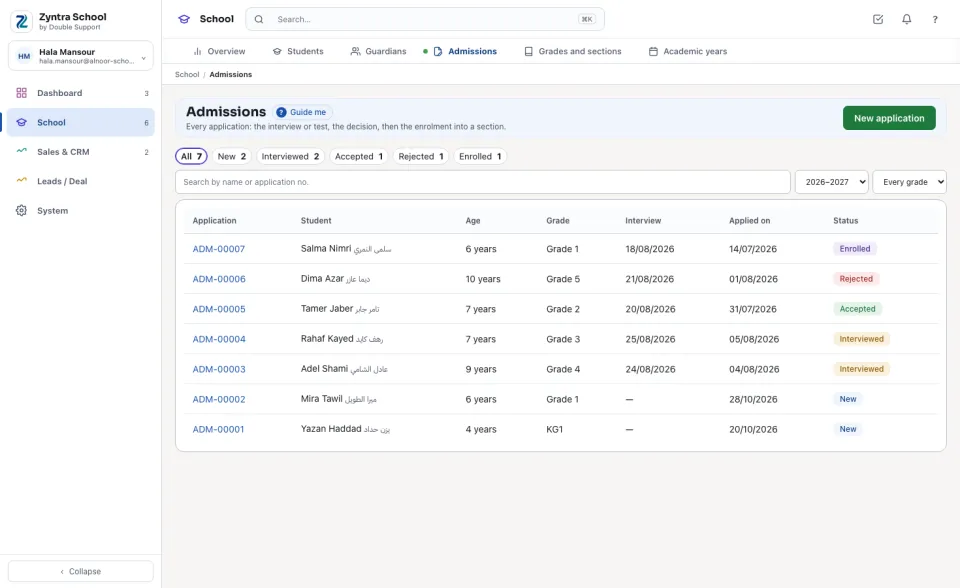
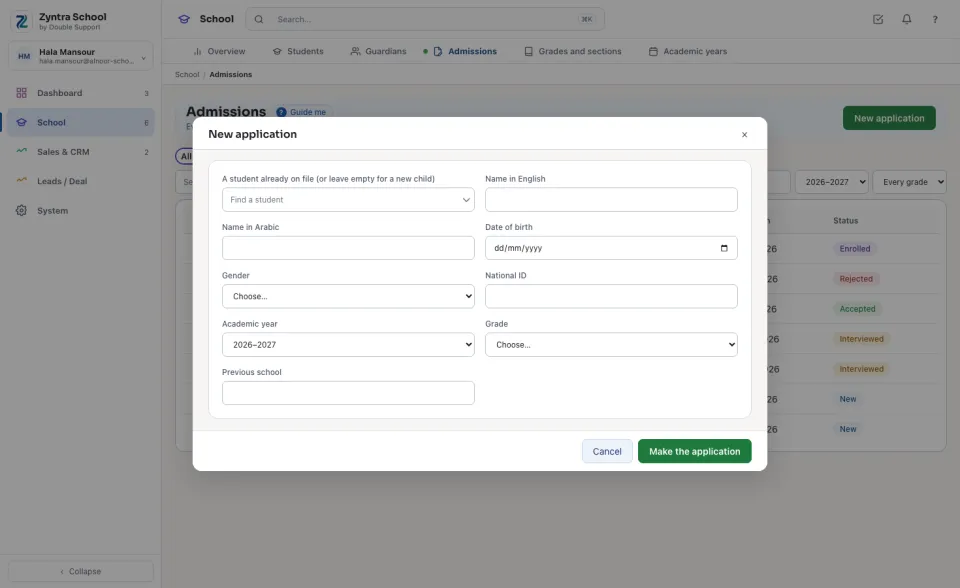
A new application
1
Press New application.
2
Find a student already on file, or leave it empty and type the new child's names, date of birth, gender and national ID.
3
Choose the Academic year and Grade, type the Previous school, and press Make the application. It gets its number (ADM-00001 and on) and the child's file starts as Applicant.
Interview, decide, enrol
1
On the application's page fill Interview (day and time), Test result and the Interview or test note, and press Save the interview. It becomes Interviewed.
2
Press Accept, or type the reason and press Reject. Who decided and when are kept.
3
An accepted application shows Enrol: choose the Section and the day. The student is enrolled into the year and grade and becomes Enrolled.
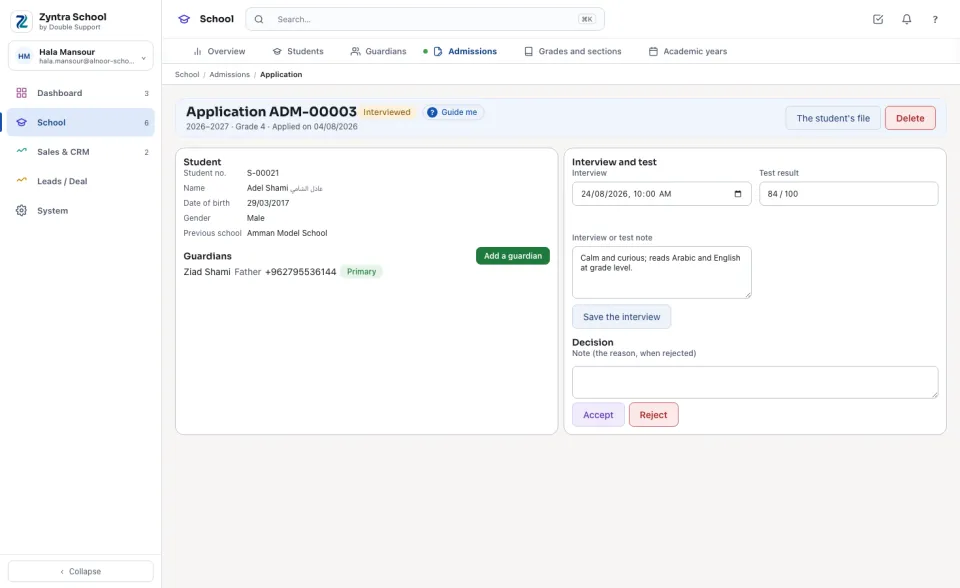
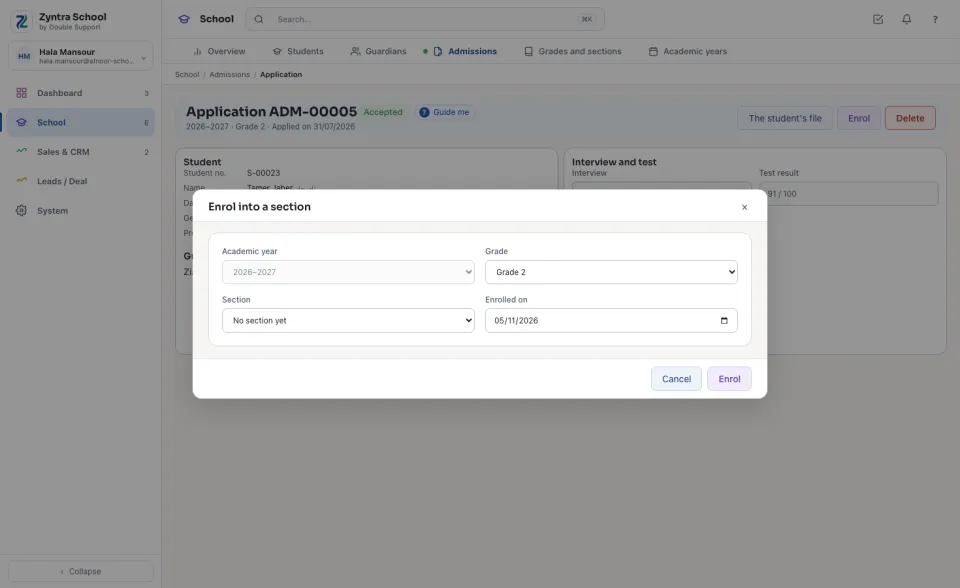
The interview comes on or after the day of the application. A rejection needs its reason. A decided application is not changed, only an accepted one is enrolled, and an enrolled one is kept with the student.
An application a family sent from the school's own page is marked Applied online, and Applied online above the list shows only those: see Online application.
Before: Guardians · Back to:  Zyntra School
Questions
Where is “Admissions” in Zyntra OS?
School › Admissions
Who can use “Admissions”?
School Admissions — View; the interview, the decision and the enrolment need School Admissions — Edit.