

 Zyntra OS
 Zyntra Legal
 Zyntra Real Estate
 Zyntra Hotel
 Zyntra E-commerce
 Zyntra Appointments
 Zyntra Repair
 Zyntra Garage
 Zyntra Concierge
 Zyntra Contracting
 Zyntra Clinic
 Zyntra Dental
 Zyntra School
 Zyntra University
 Zyntra Call Center
 Zyntra OTA
Where
School › Online applicationWho
Opening, closing and pricing the form is the right «Open or close the online form». Reading what an applicant sent (the documents, the fee) is the right «Review online applications».Open the form
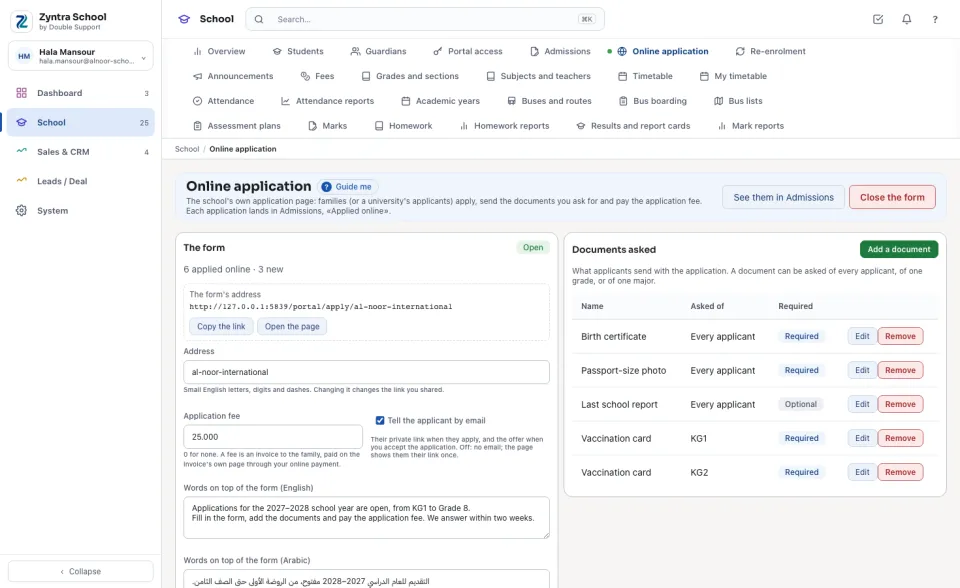
The documents asked
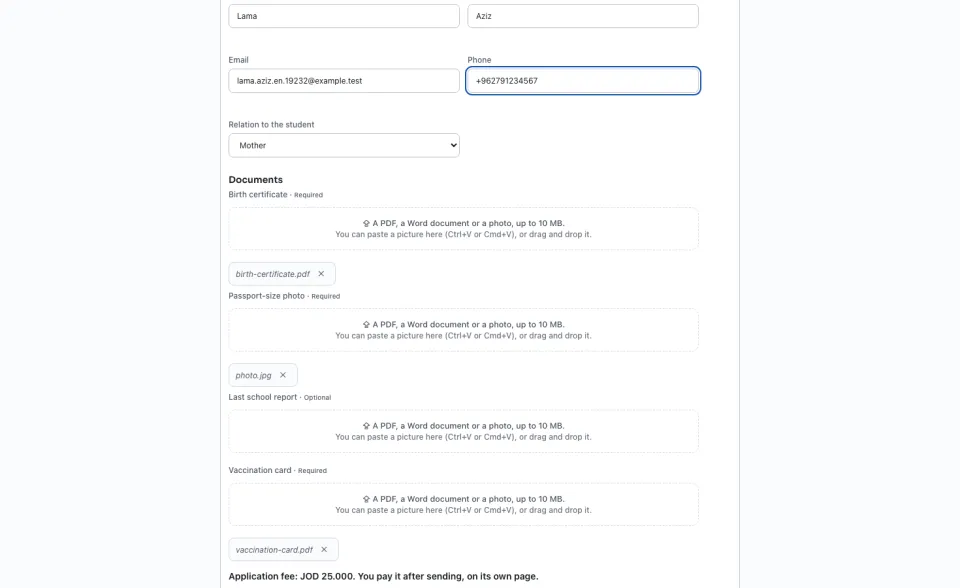
The form shows each family only the documents of the grade (and major) they choose. A required one missing is refused by name; each file is checked by its content, kept apart and never opened by the server.
What a family sees
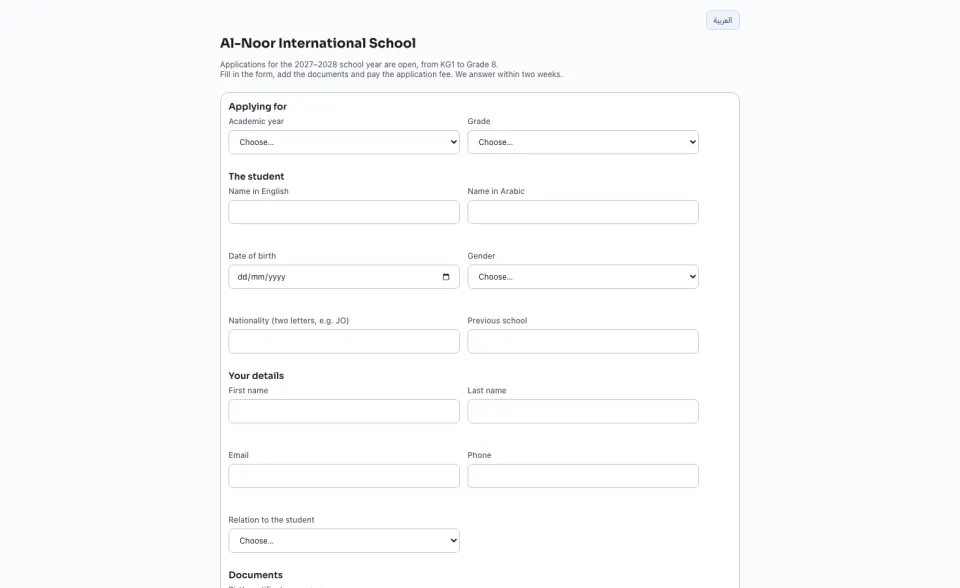
The form says the school's words on top and asks the year and the grade (and the major, at a university), the student's names, date of birth and gender, the family's names, email, phone and relation to the student, and the documents. العربية switches the page to Arabic.
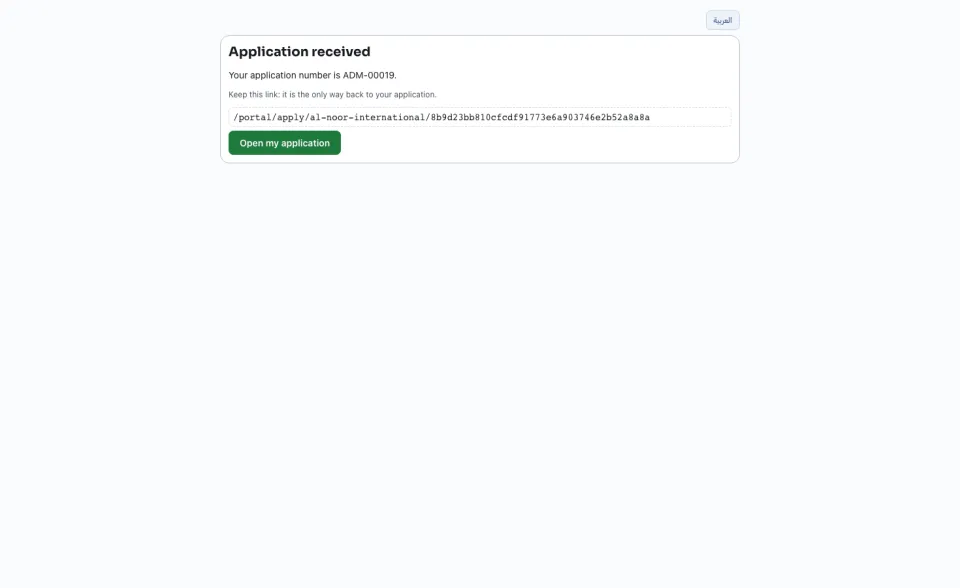
Once sent, the family reads the application's number and their private link. It is the only way back to their application: the page says to keep it, and the email sends it when the school switched the email on.
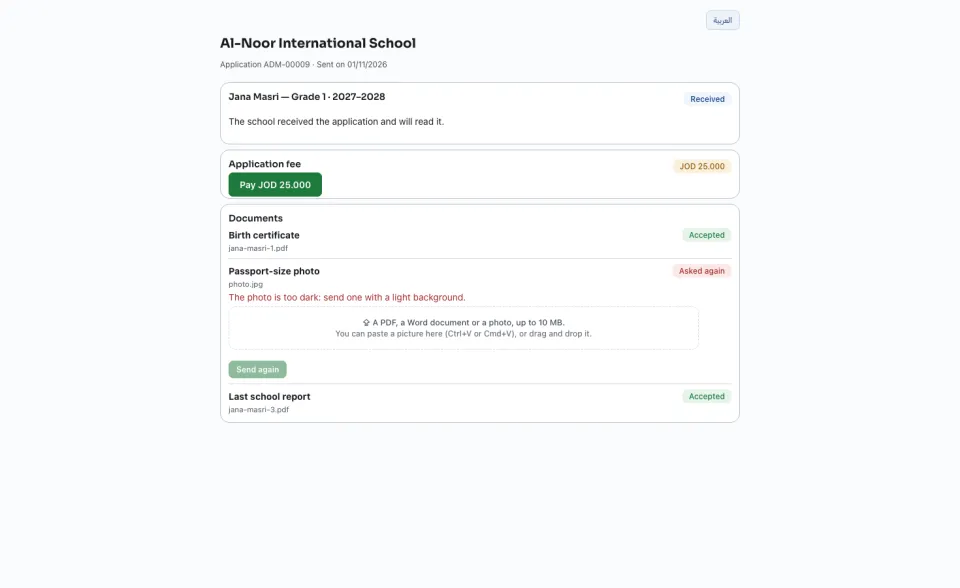
By the link the family sees the state (Received, Interview, Offered a place, Not accepted, Enrolled), the day of the interview, each document with the school's word on it, and the fee with Pay. A document the school asked again shows the reason, and the family sends a new one there.
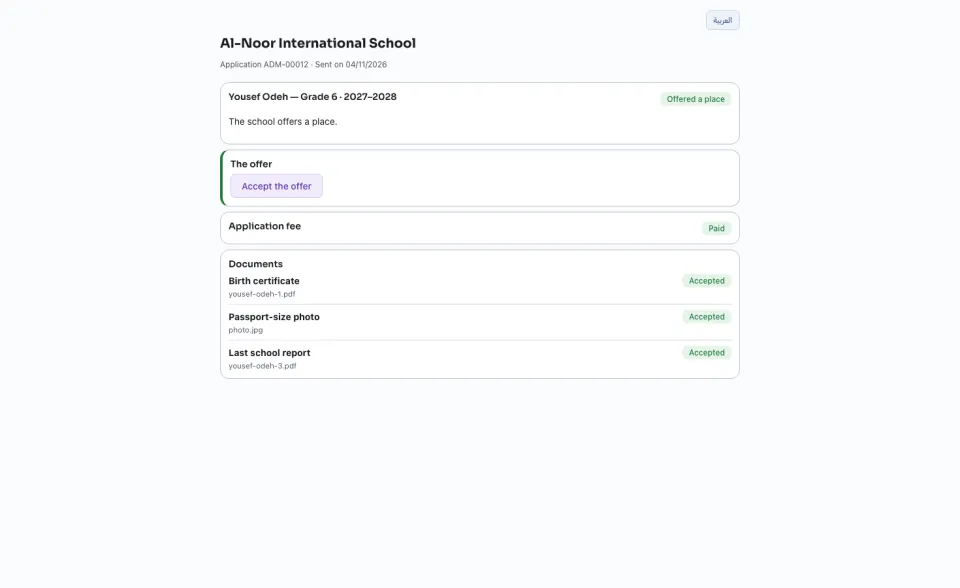
When the school accepts the application, the family presses Accept the offer. The school then enrols the student from the application, as with any other.
Review an online application
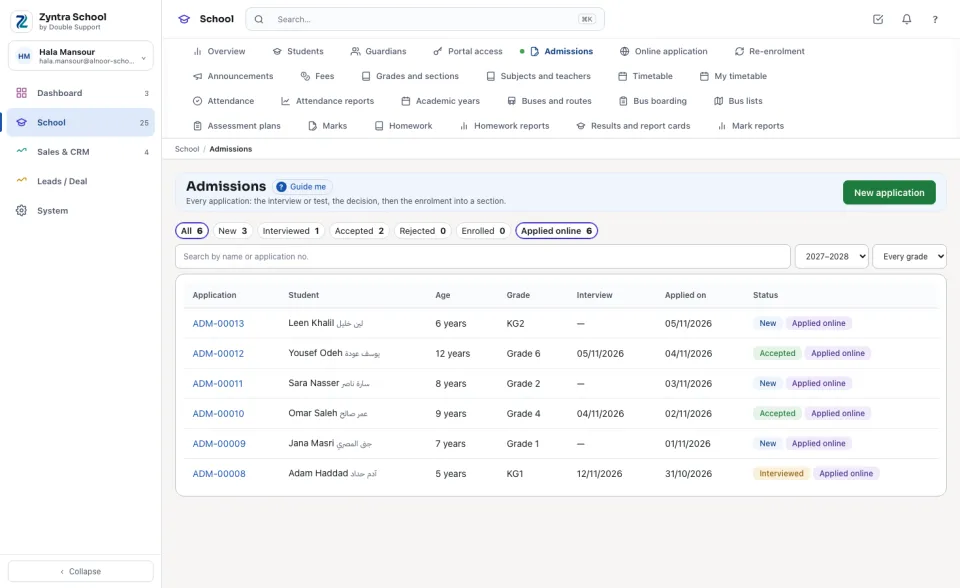
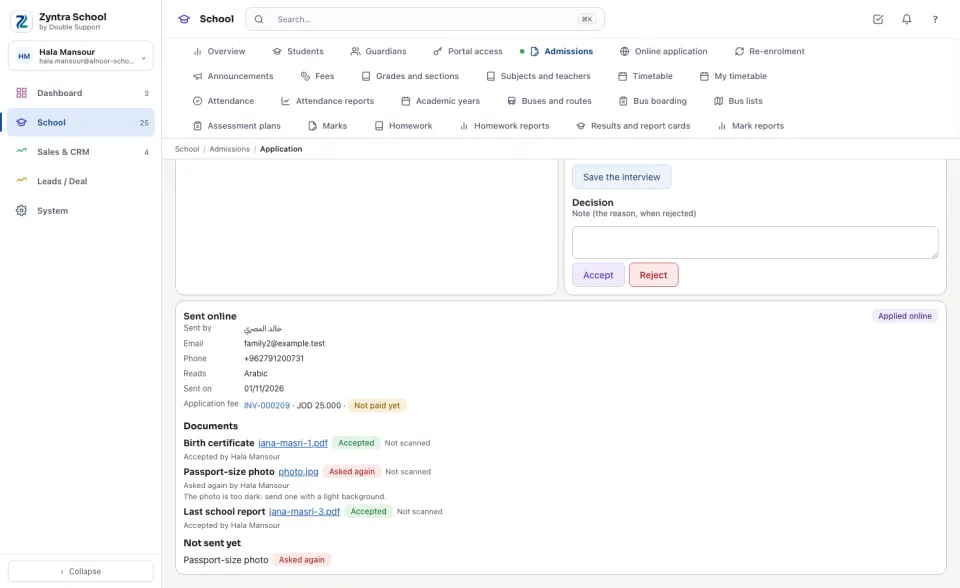
The interview, the decision and the enrolment are the application's own steps above it. An application from the form is never joined to a family already on file by its email: a family whose email the school already has is asked to use another one, or to ask the school, which adds the child to the family from Guardians.
Questions
Where is “Online application” in Zyntra OS?
School › Online application
Who can use “Online application”?
Opening, closing and pricing the form is the right «Open or close the online form». Reading what an applicant sent (the documents, the fee) is the right «Review online applications».