

 Zyntra OS
 Zyntra Legal
 Zyntra Real Estate
 Zyntra Hotel
 Zyntra E-commerce
 Zyntra Appointments
 Zyntra Repair
 Zyntra Garage
 Zyntra Concierge
 Zyntra Contracting
 Zyntra Clinic
 Zyntra Dental
 Zyntra School
 Zyntra University
 Zyntra Call Center
 Zyntra OTA
Where
School › Behaviour › Incidents, Meetings and Categories and ladderWho
«School Behaviour — Manage incidents» records incidents, takes the steps, asks families in and keeps the school's lists; «View all» reads them.Incidents
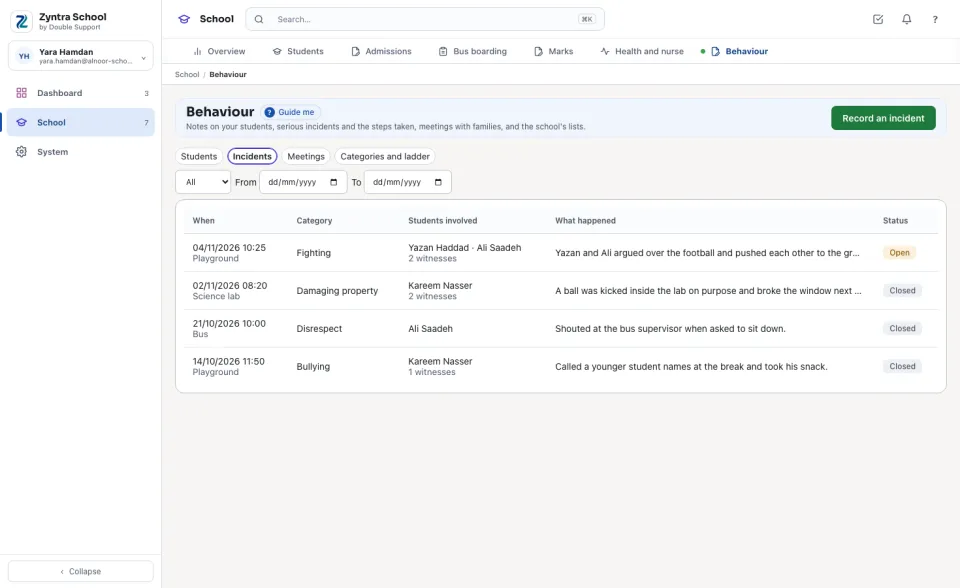
Incidents lists this year's cases, the latest first: When, the Category, the Students involved, What happened and the Status (Open or Closed). Choose a status or the days From and To to narrow it.
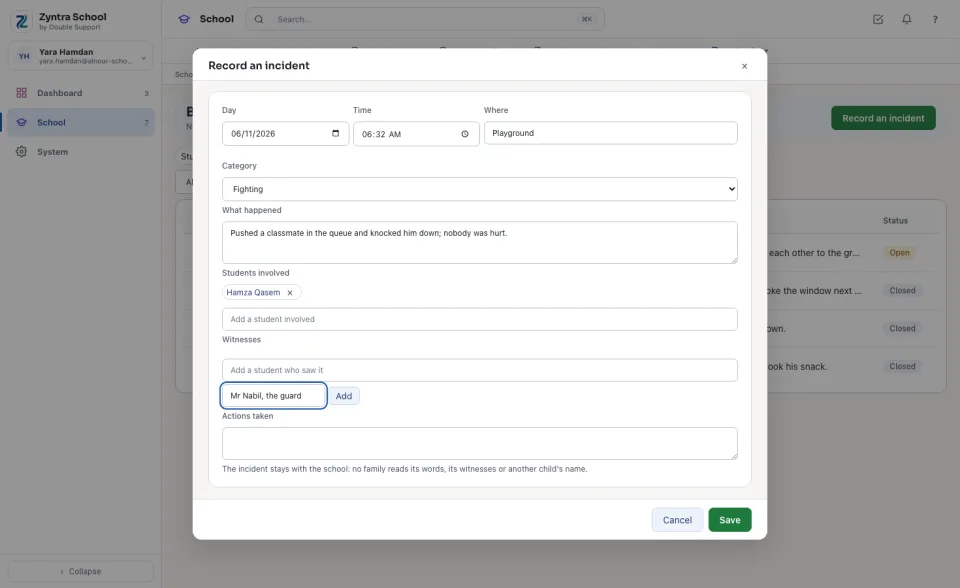
Record an incident
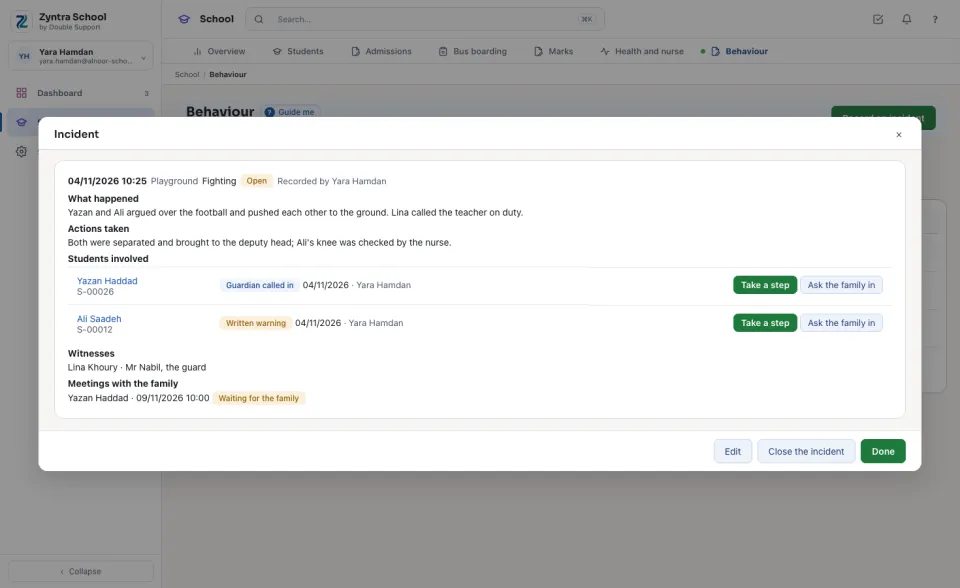
An incident and its steps
Press an incident to open it. Each student involved has the steps already taken for him; Take a step and Ask the family in stand on his line. Edit changes it, Close the incident closes it (Open it again reopens it).
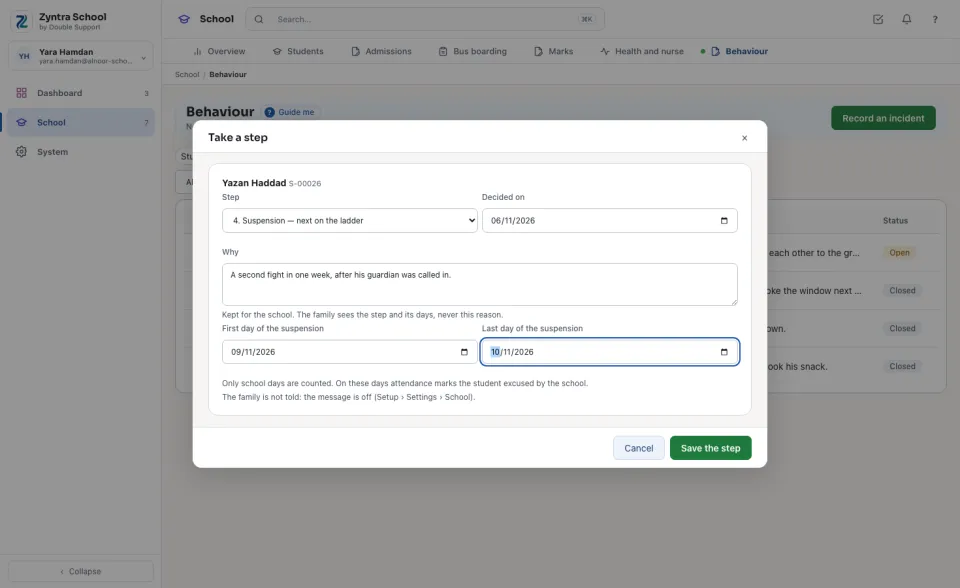
Take a step
Meetings with the family
Meetings lists the meetings from today on: When, the Student, What it is about and the Status — Waiting for the family until the guardian confirms it on the portal, then Confirmed. Ask the family in asks for a new one. Move changes the day or the place (a meeting moved waits for the guardian again); Call off asks why.
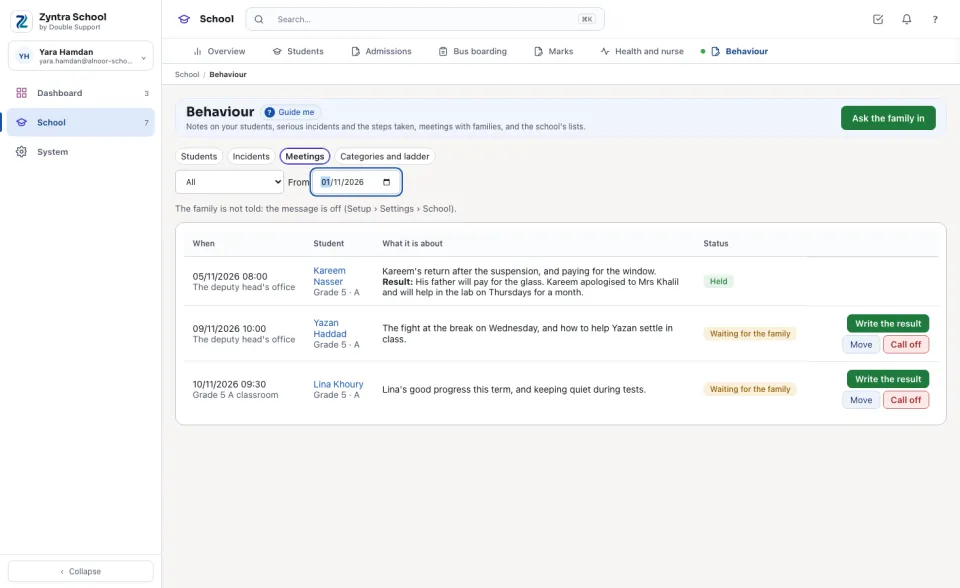
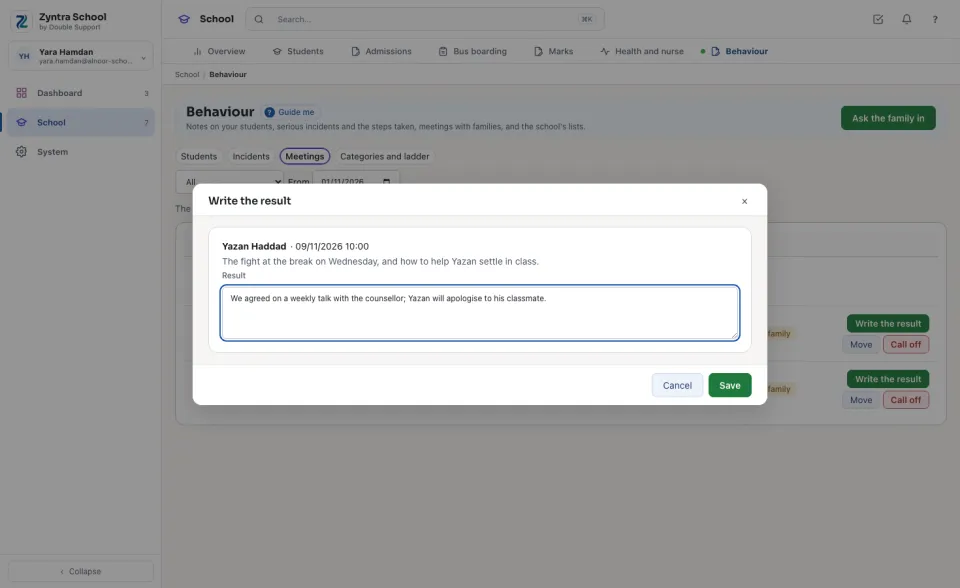
After the meeting press Write the result, write what was agreed and press Save: the meeting is then Held.
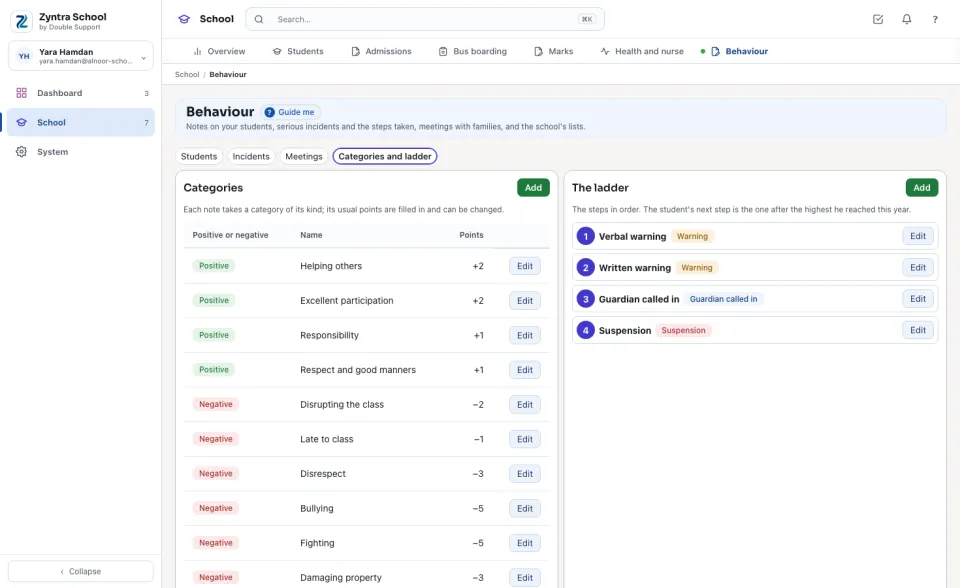
Categories and the ladder
Categories and ladder keeps the school's own lists. Categories: each is positive or negative, with its name in English and Arabic and its Usual points. The ladder: the steps in order, each a warning, a meeting with the guardian, a suspension or another step. Add a line or Edit one; a line no longer used is unticked from In use, never deleted.
Questions
Where is “Incidents, steps and meetings” in Zyntra OS?
School › Behaviour › Incidents, Meetings and Categories and ladder
Who can use “Incidents, steps and meetings”?
«School Behaviour — Manage incidents» records incidents, takes the steps, asks families in and keeps the school's lists; «View all» reads them.