

 Zyntra OS
 Zyntra Legal
 Zyntra Real Estate
 Zyntra Hotel
 Zyntra E-commerce
 Zyntra Appointments
 Zyntra Repair
 Zyntra Garage
 Zyntra Concierge
 Zyntra Contracting
 Zyntra Clinic
 Zyntra Dental
 Zyntra School
 Zyntra University
 Zyntra Call Center
 Zyntra OTA
Where
School › MarksWho
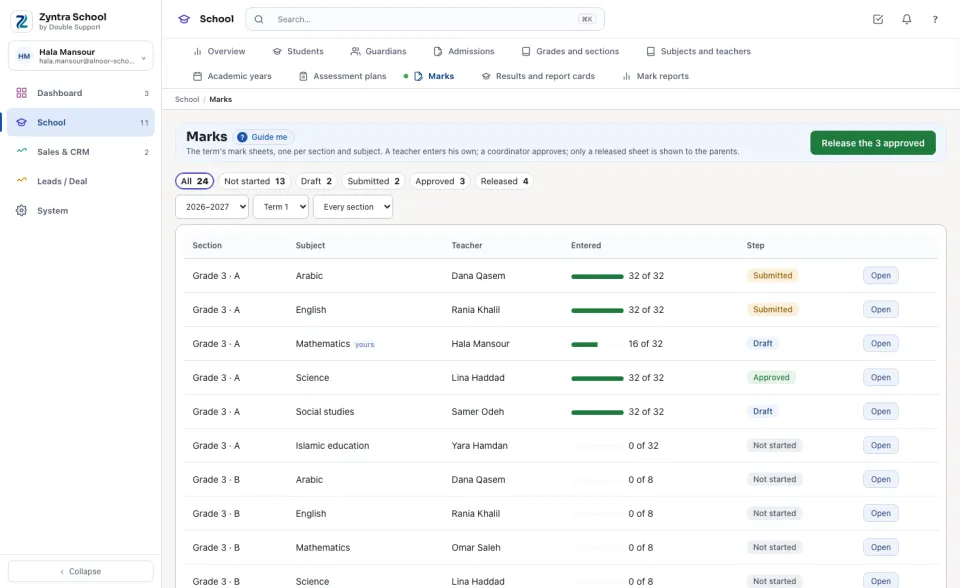
A teacher with the right to enter marks for their own sections sees and types only the subjects he teaches; viewing every section, approving and releasing each have their own right.Each line is a section's subject in the term chosen: its Teacher, how much is Entered, and its Step — Not started, Draft, Submitted, Approved or Released. The buttons above count each step; Open opens the sheet.
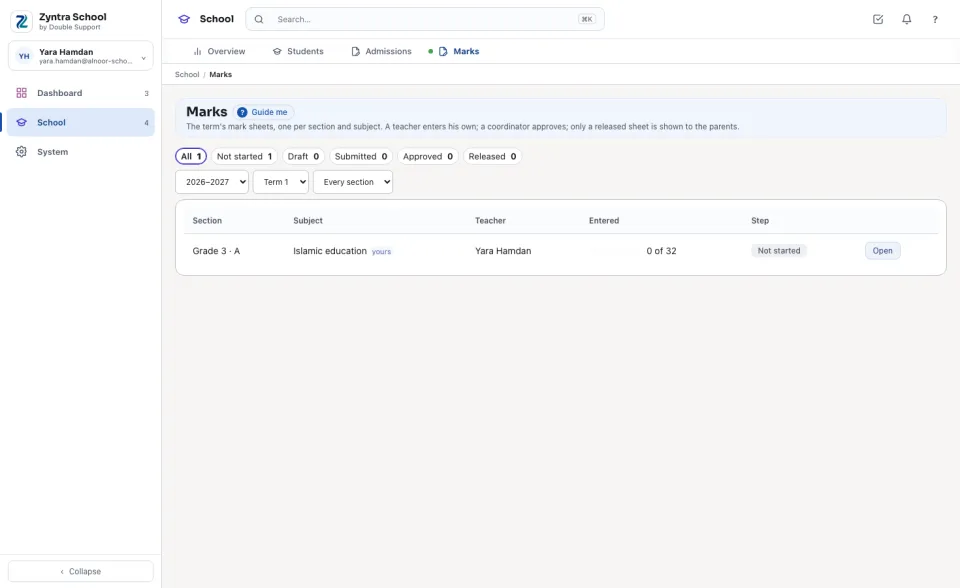
A teacher sees only the subjects chosen for him in Subjects and teachers, marked yours.
Enter and submit the marks (the teacher)
1
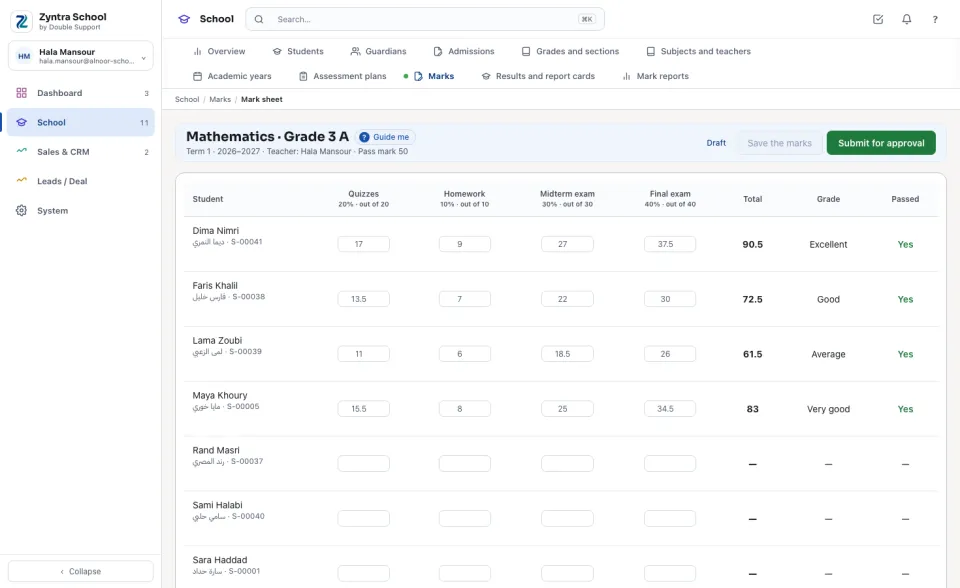
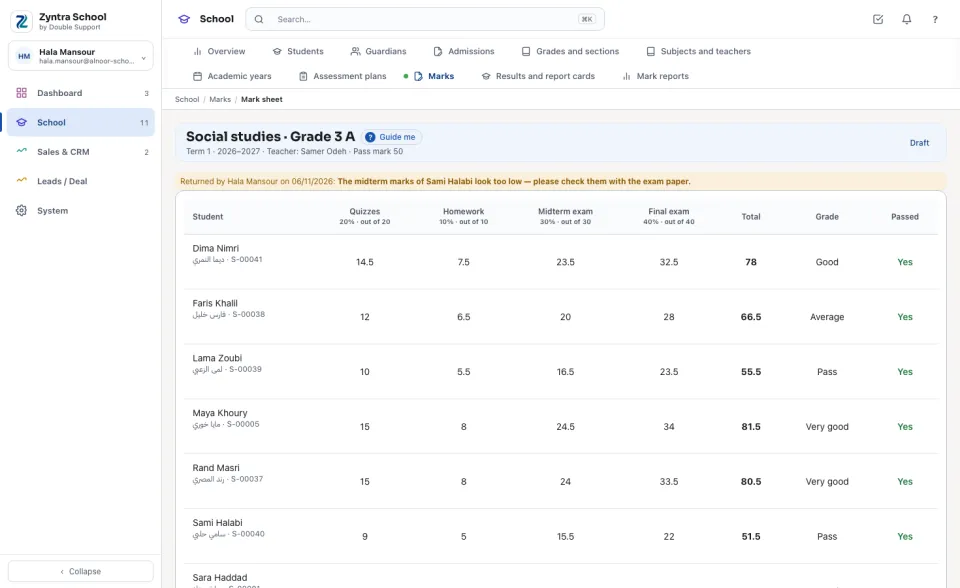
Open the sheet. A line per student, a box per component: type each mark, from 0 to what the component is out of. The Total out of 100, the Grade and Passed are worked out as you type.
2
Press Save the marks as often as you like; a half-typed sheet stays a draft.
3
When every student has every mark, press Submit for approval.
Approve or return it (the coordinator)
1
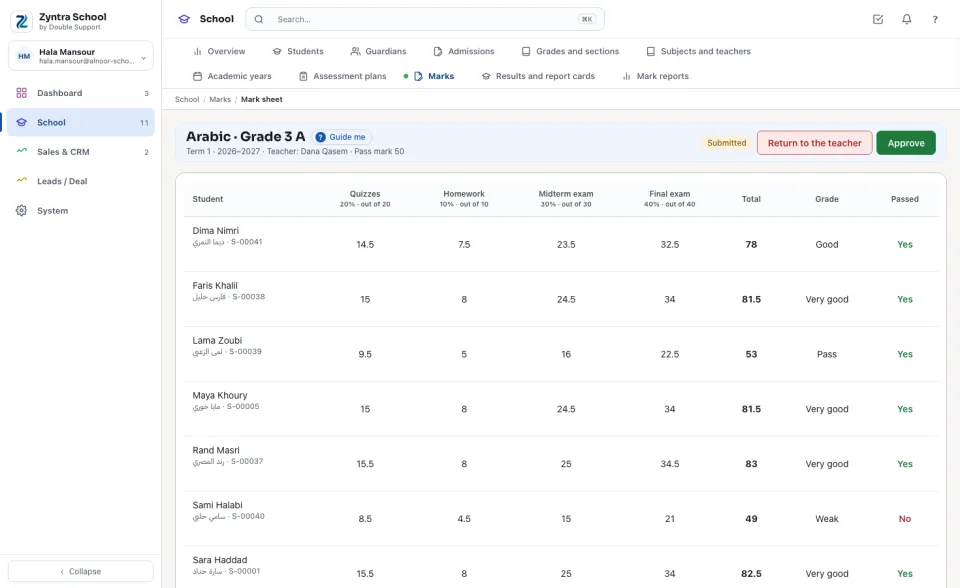
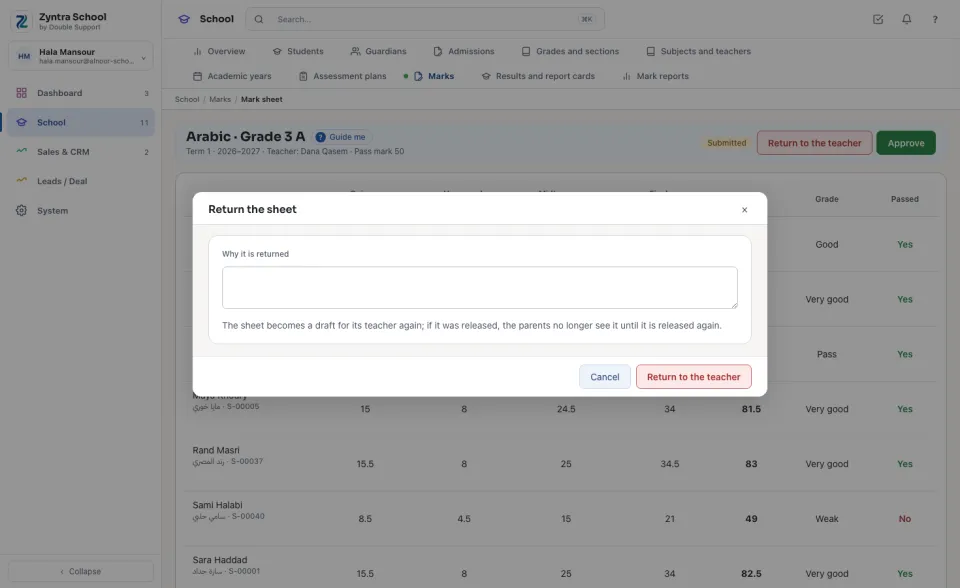
Open a Submitted sheet. Press Approve, or Return to the teacher.
2
To return it, type Why it is returned and press Return to the teacher. The sheet is a draft for its teacher again, with the reason at its top.
Release to the parents
1
Open an Approved sheet and press Release to the parents — or press the list's release button (it counts the approved sheets) to release every approved sheet of the term (or of the section chosen) at once.
Only the subject's teacher of that section types its marks. A submitted or approved sheet is changed only after it is returned. Nothing reaches the parents until it is released, and a released sheet that is returned is hidden from them again until it is released anew.
Before: Assessment plans · Next: Results and report cards
Questions
Where is “Marks” in Zyntra OS?
School › Marks
Who can use “Marks”?
A teacher with the right to enter marks for their own sections sees and types only the subjects he teaches; viewing every section, approving and releasing each have their own right.