
 Zyntra OS
 Zyntra Legal
 Zyntra Real Estate
 Zyntra Hotel
 Zyntra E-commerce
 Zyntra Appointments
 Zyntra Repair
 Zyntra Garage
 Zyntra Concierge
 Zyntra Contracting
 Zyntra Clinic
 Zyntra Dental
 Zyntra School
 Zyntra University
 Zyntra Call Center
 Zyntra OTA
Where
School › Learning platforms — also from Setup › Channels › Learning platformsWho
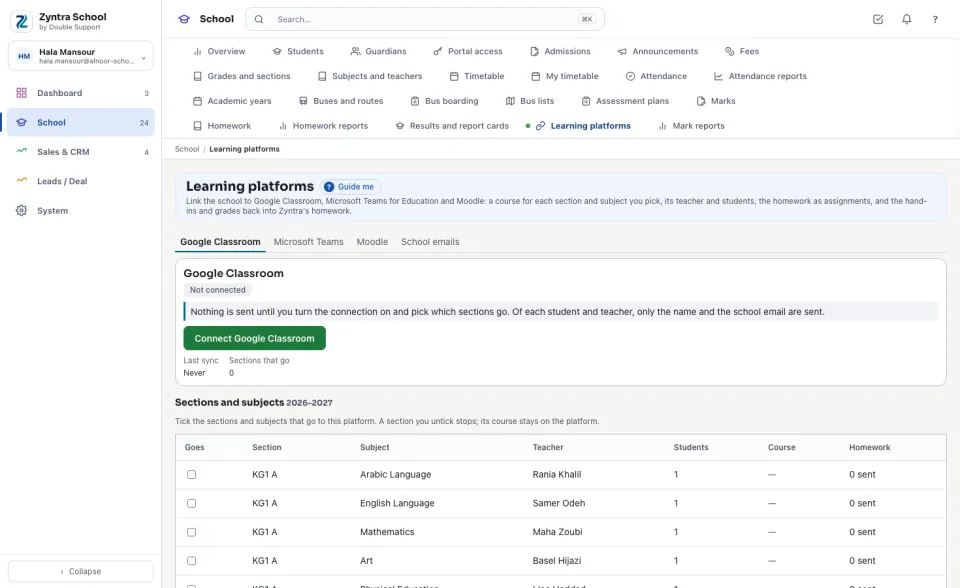
Set up the connections: connect, turn on, pick the sections, the school emails, unlink. Sync: Sync now and the syncs.Nothing is sent until you turn a connection on and pick which sections go. Of each student and teacher, only the name and the school email are sent.
Connect a platform
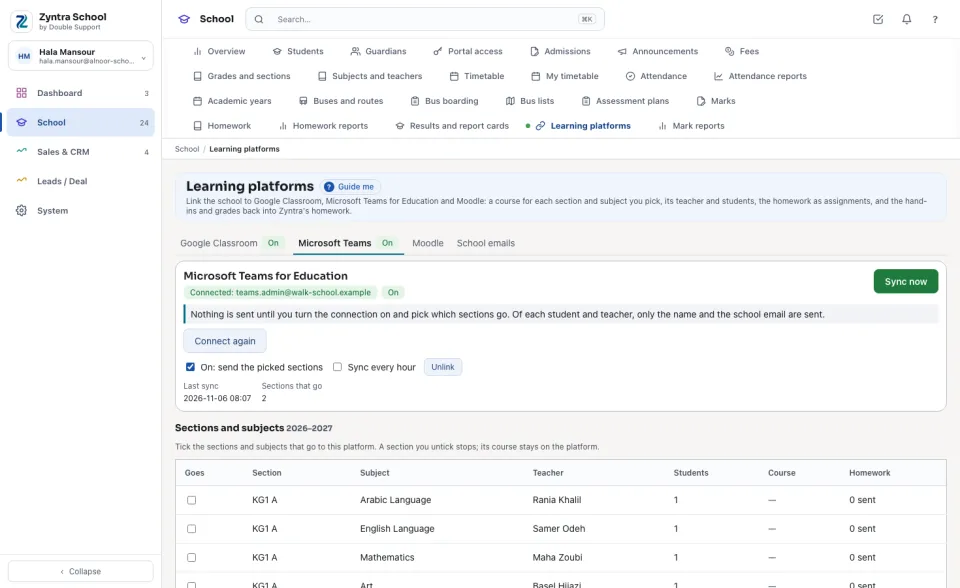
Open the platform's tab. For Google Classroom and Microsoft Teams press its connect button and sign in with the school's own account that may make courses; you come back here, Connected to that account. Its secret sign-in is kept sealed and never shown.
Turn it on and pick the sections
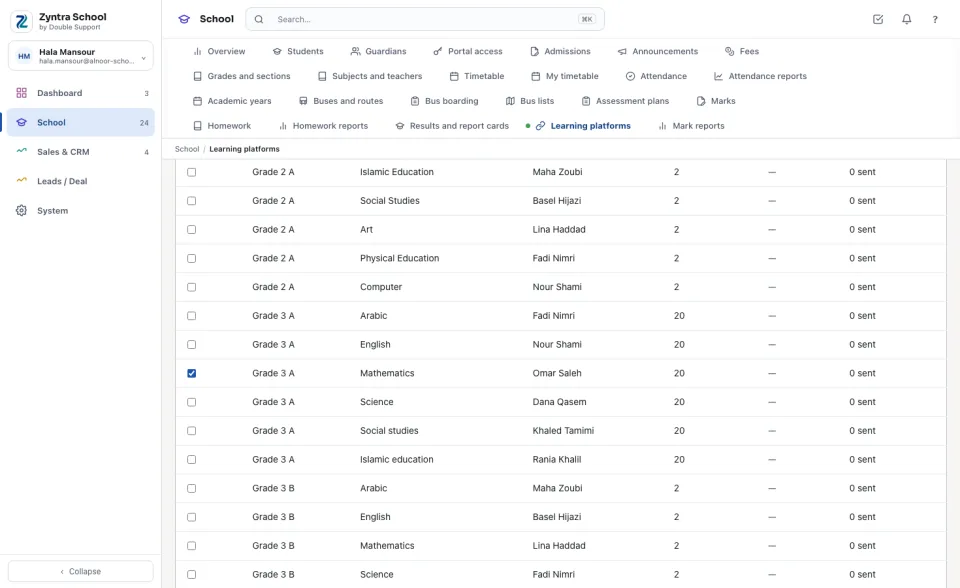
Tick On: send the picked sections, then tick each section and subject that goes in the Goes column and press Save the sections. Each row shows the teacher, how many students it has and how many have No school email. A section you untick stops; its course stays on the platform.
Sync now, and read what it did
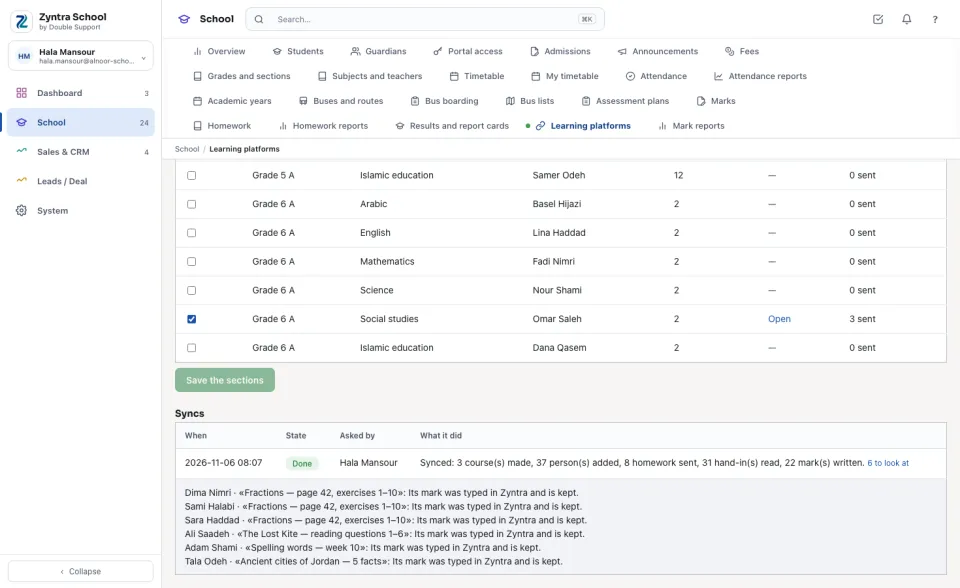
Press Sync now. The sync runs in a moment, never while a page opens: it makes each course, adds the teacher and the students by their school email, sends each published homework as an assignment, and reads back what was handed in and the grades. Under Syncs each one says when, who asked, and what it did; press to look at to read each point by name — a student with no school email, a mark you typed in Zyntra (it is kept), a platform that did not answer. Tick Sync every hour to let it run on its own.
Microsoft Teams
The same steps: each section and subject becomes a class team with its teacher and students, the homework a Teams assignment.
Moodle
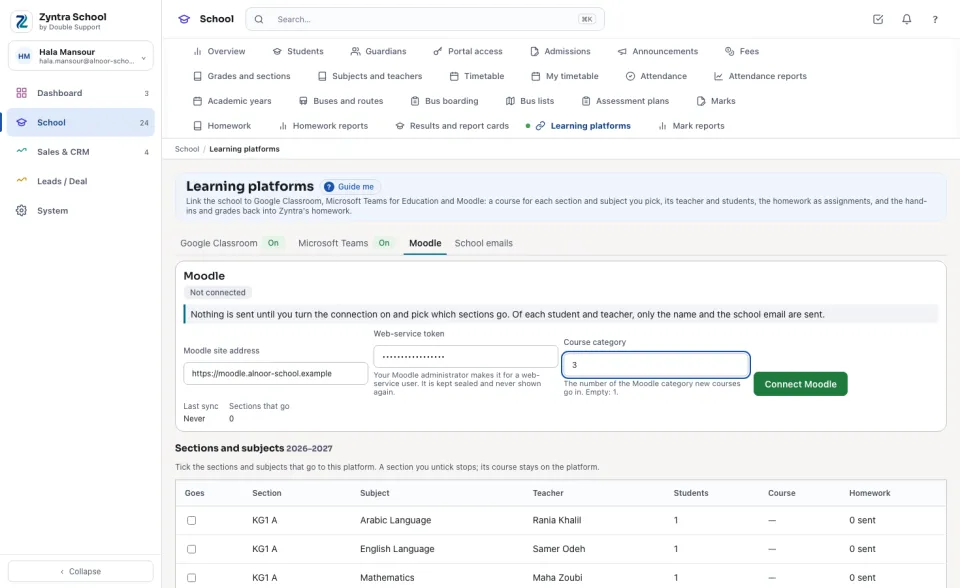
Moodle has no sign-in page: type the Moodle site address, the Web-service token your Moodle administrator made, and the Course category new courses go in, then Connect Moodle. Moodle's web services make no assignment, so each homework is linked to the course's assignment with the same title; until the teacher adds it there, the homework says it is waiting.
School emails
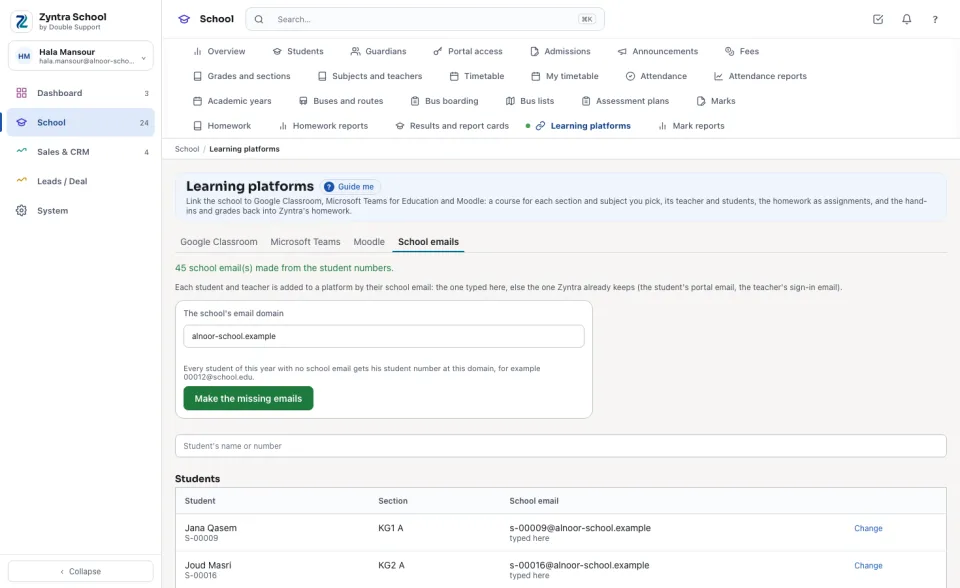
Each student and teacher is added by their school email: the one typed here, else the one Zyntra keeps (the student's portal email, the teacher's sign-in email). Type The school's email domain and press Make the missing emails: every student with none gets his student number at that domain. Press Change to type one by hand.
What comes back to the homework
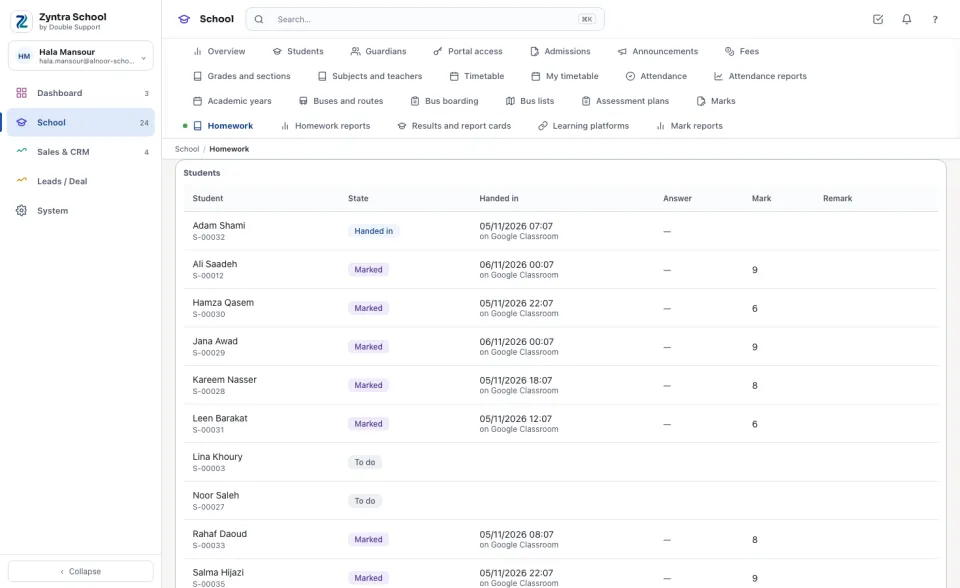
On the homework's page, a hand-in made on a platform says where it came from, on time or late. A grade given there is the student's mark here, out of the homework's own maximum, as Marked: the family sees it only after the teacher returns it, and it reaches the mark sheet through the homework's own way.
In Zyntra University the same connections take the university's sections too, under University sections: see Learning platforms for sections.
Questions
Where is “Learning platforms” in Zyntra OS?
School › Learning platforms — also from Setup › Channels › Learning platforms
Who can use “Learning platforms”?
Set up the connections: connect, turn on, pick the sections, the school emails, unlink. Sync: Sync now and the syncs.