

 Zyntra OS
 Zyntra Legal
 Zyntra Real Estate
 Zyntra Hotel
 Zyntra E-commerce
 Zyntra Appointments
 Zyntra Repair
 Zyntra Garage
 Zyntra Concierge
 Zyntra Contracting
 Zyntra Clinic
 Zyntra Dental
 Zyntra School
 Zyntra University
 Zyntra Call Center
 Zyntra OTA
Where
School › Question bankWho
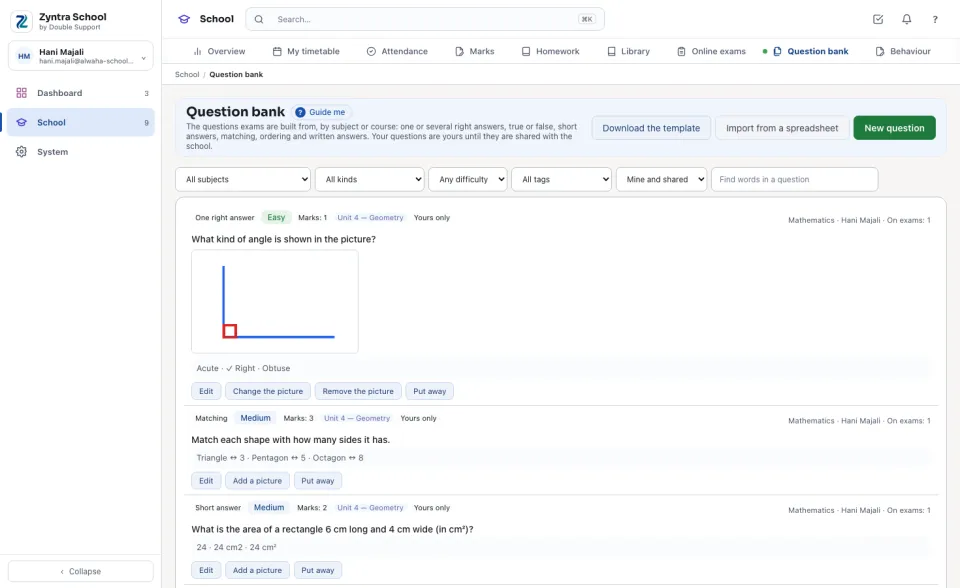
Who holds «Write questions in the bank» writes questions and reads their own and the shared ones. Who holds «Share questions with the school» reads every question, shares one with everybody, takes it back, and changes the shared ones. Who builds exams reads the bank to choose from it.Each question shows its kind, its Difficulty, its marks, its tags (the unit or the outcome), whether it is Shared or Yours only, its subject, who wrote it and how many exams use it — then the question itself and its answer. A question written in Arabic is drawn right to left, one in English left to right, on every screen and in the student's exam. Filter by subject, kind, difficulty, tag or Mine / Shared, or type words to find a question.
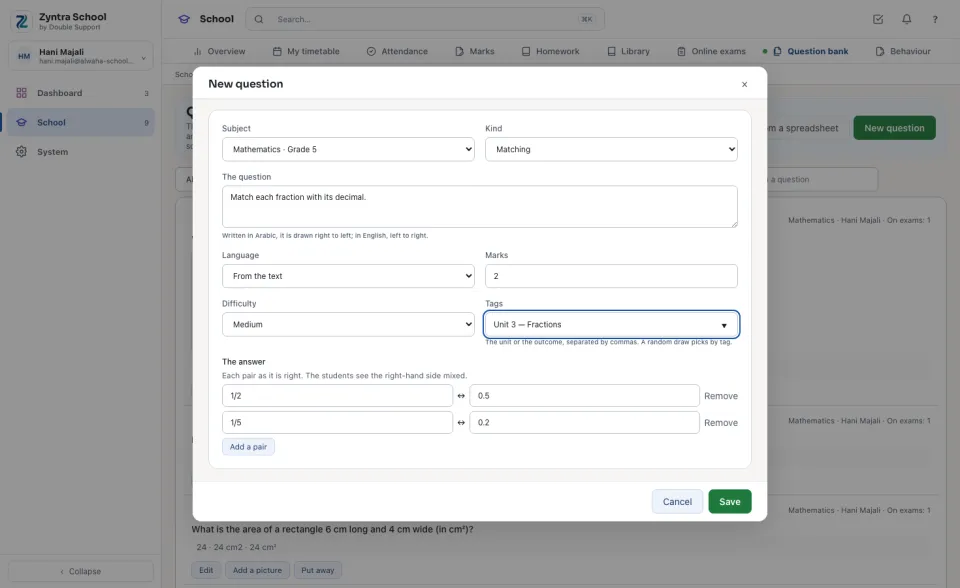
Write a question
Under a saved question, Add a picture adds a PNG, JPEG or WebP picture (up to 2 MB), shown with the question on the student's exam. Edit changes a question; a paper a student has already sat keeps the question as it was. Put away takes it out of the bank and of every random draw; the exams that chose it keep it.
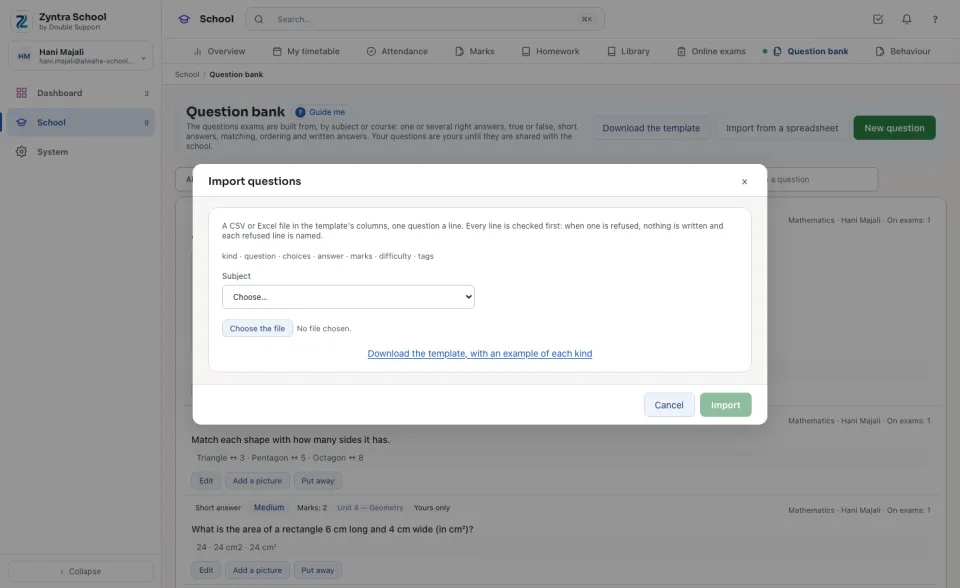
Import many at once
Share with the school
A question is its writer's own until it is shared. Who holds «Share questions with the school» sees every teacher's questions and presses Share with the school on a good one: every teacher of the school then reads it and can use it on their exams. Take back returns it to its writer alone. A shared question is changed only by who holds that right.
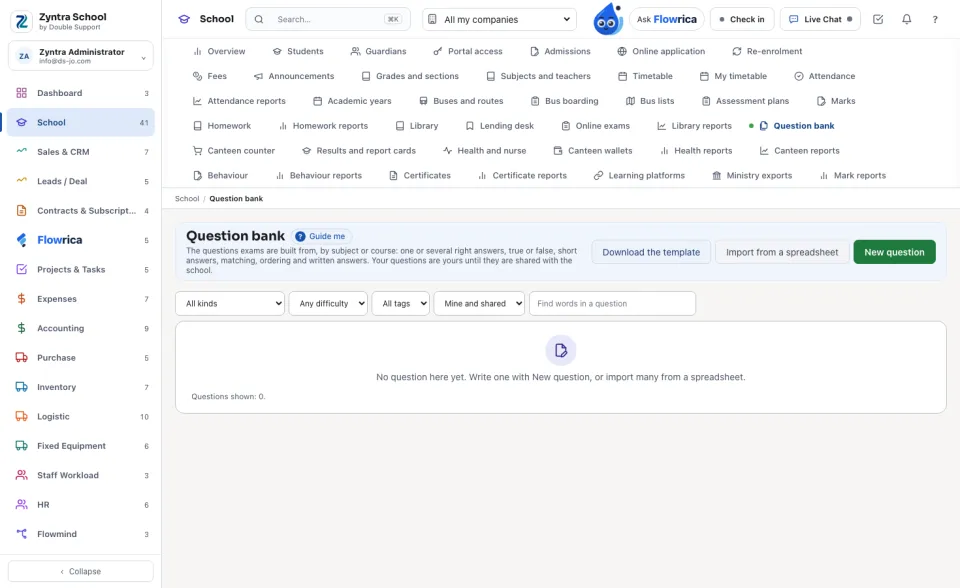
Questions
Where is “Question bank” in Zyntra OS?
School › Question bank
Who can use “Question bank”?
Who holds «Write questions in the bank» writes questions and reads their own and the shared ones. Who holds «Share questions with the school» reads every question, shares one with everybody, takes it back, and changes the shared ones. Who builds exams reads the bank to choose from it.