Zyntra OS
 Zyntra Legal
 Zyntra Real Estate
 Zyntra Hotel
 Zyntra E-commerce
 Zyntra Appointments
 Zyntra Repair
 Zyntra Garage
 Zyntra Concierge
 Zyntra Contracting
 Zyntra Clinic
 Zyntra Call Center
 Zyntra OTA
Where
System › Setup › Custom PDFWho
Anyone allowed to see settings; changes need permission to edit settings.1
Company says whose design you are changing. Press Change company to give one company its own; every other company keeps the group’s.
2
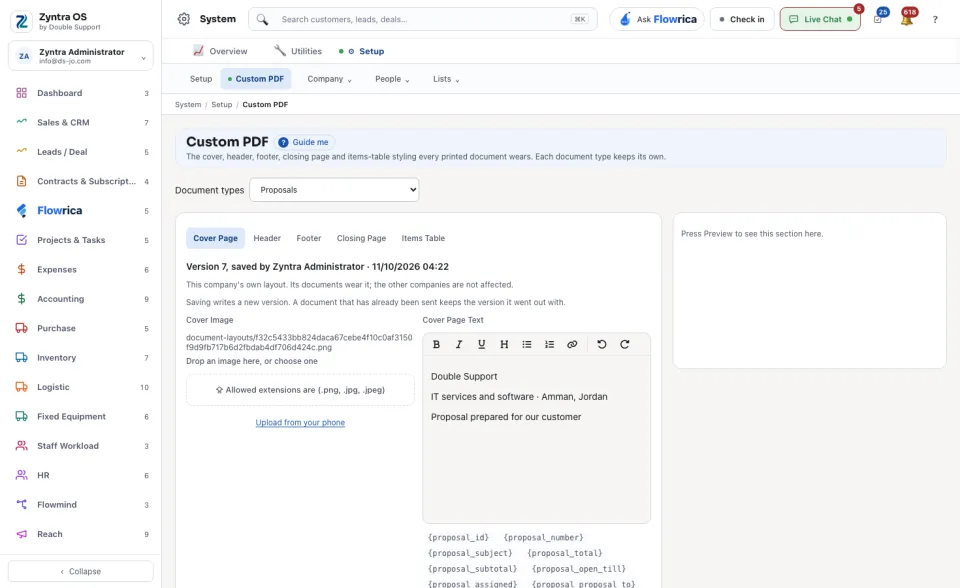
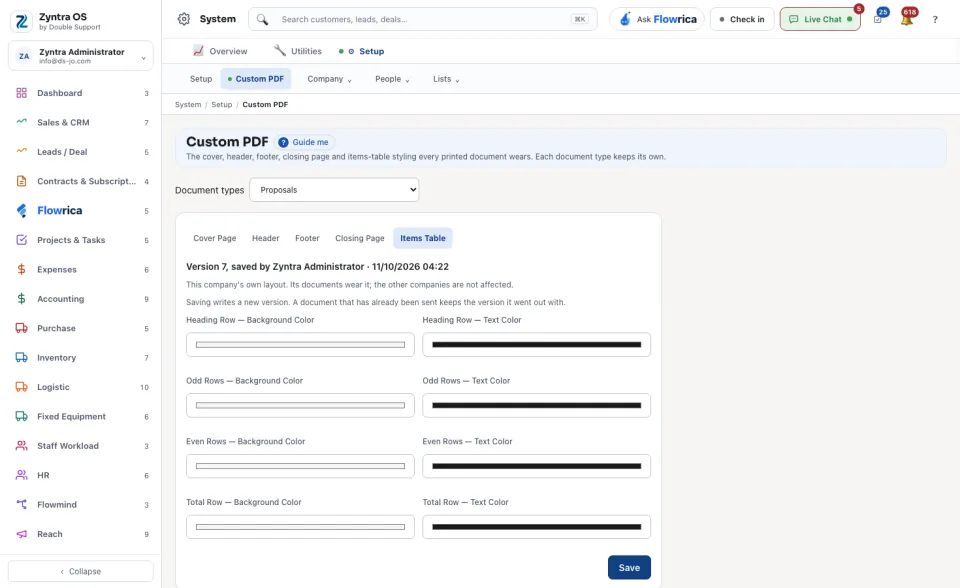
Under Document types, choose the document, for example Invoice, Estimate, Contract or Purchase Order.
3
Work through the tabs: Cover Page, Header, Footer, Closing Page and Items Table. On the cover page, for example, you add the Cover Image and the Cover Page Text, and say how far from the top and the left the text stands. A picture can also come from Upload from your phone.
4
Press Preview to see the page, then Save.
A document already sent keeps the design it went out with. The new design is worn by documents printed from now on.