

 Zyntra OS
 Zyntra Legal
 Zyntra Real Estate
 Zyntra Hotel
 Zyntra E-commerce
 Zyntra Appointments
 Zyntra Repair
 Zyntra Garage
 Zyntra Concierge
 Zyntra Contracting
 Zyntra Clinic
 Zyntra Call Center
 Zyntra OTA
Where
Growth Center › SurveysWho
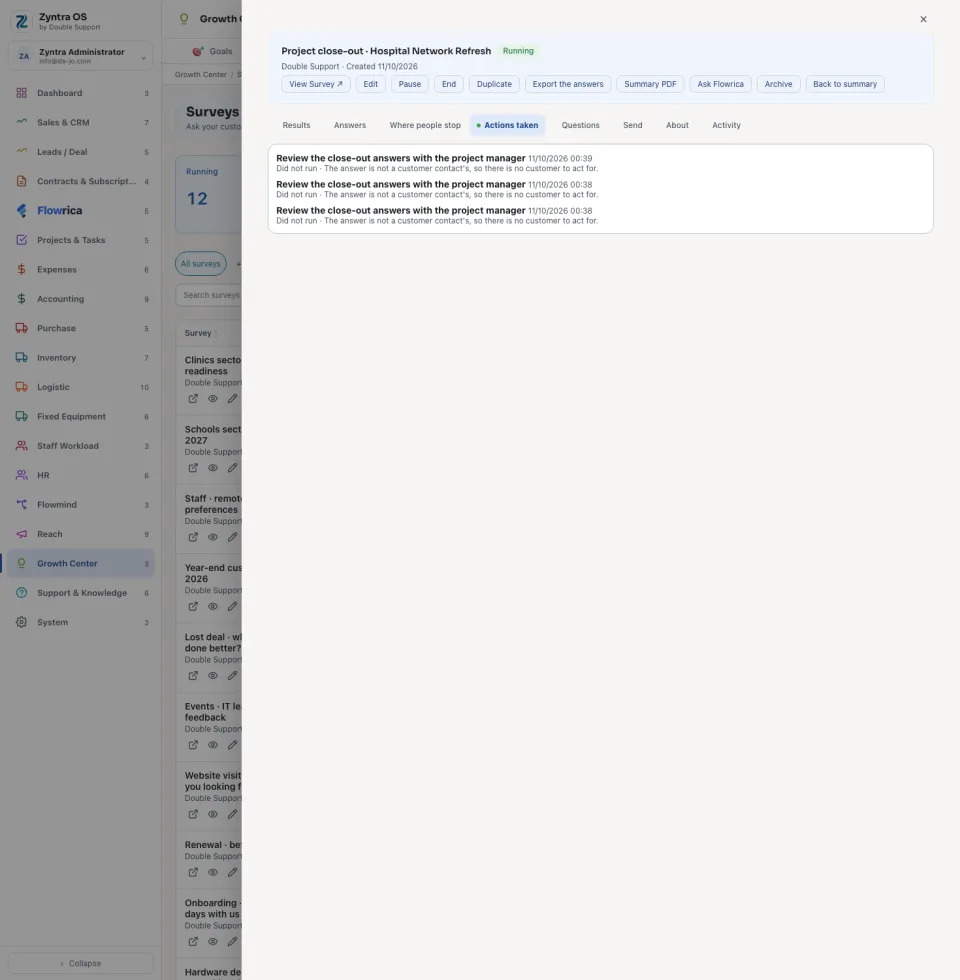
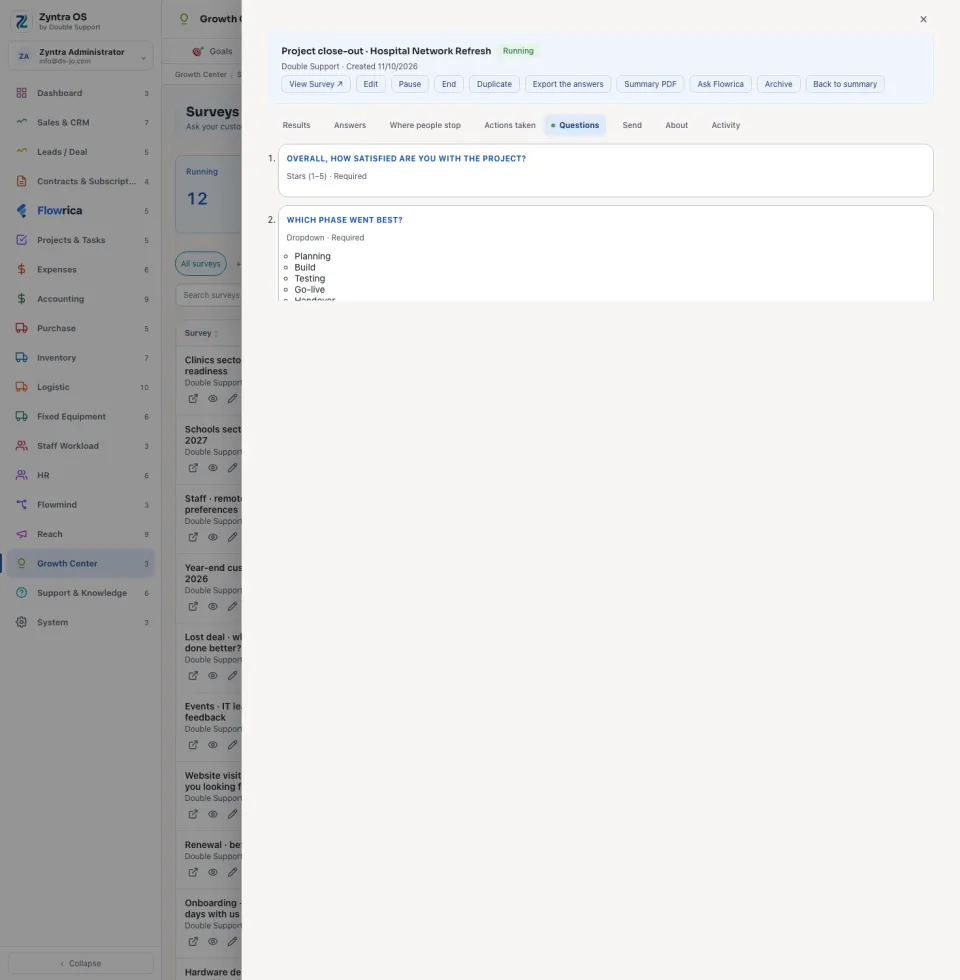
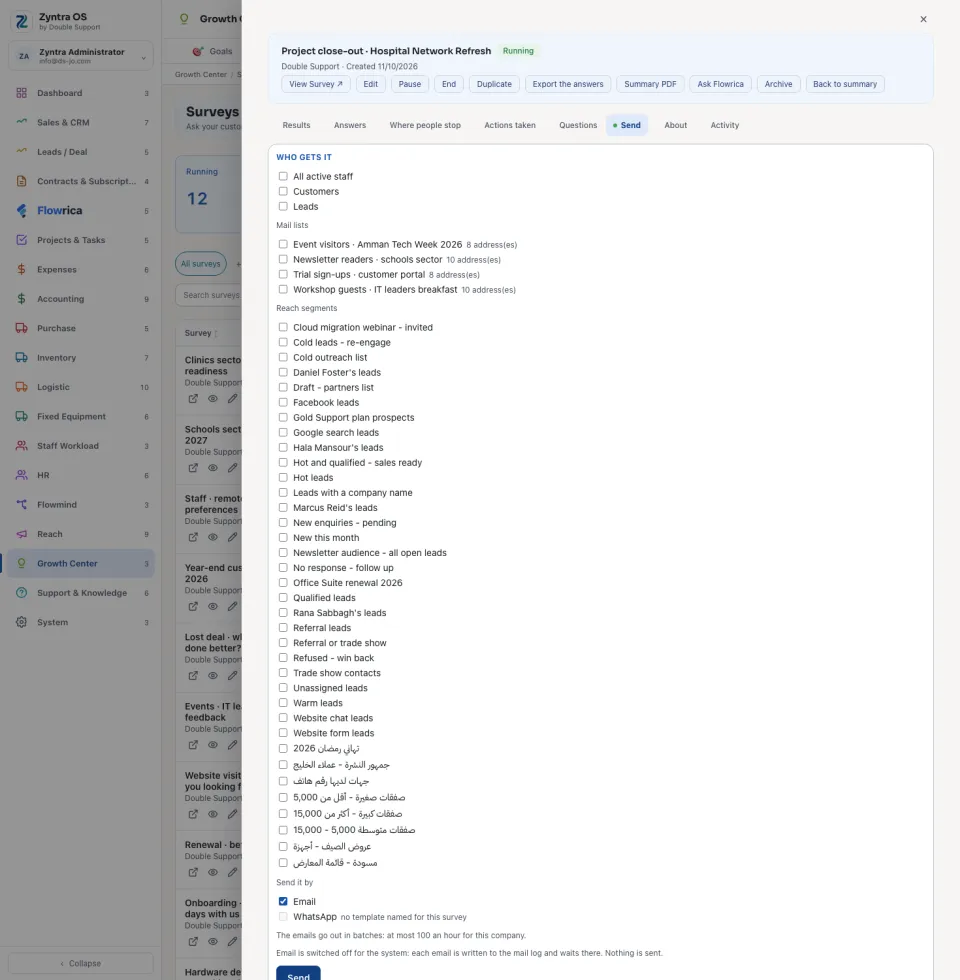
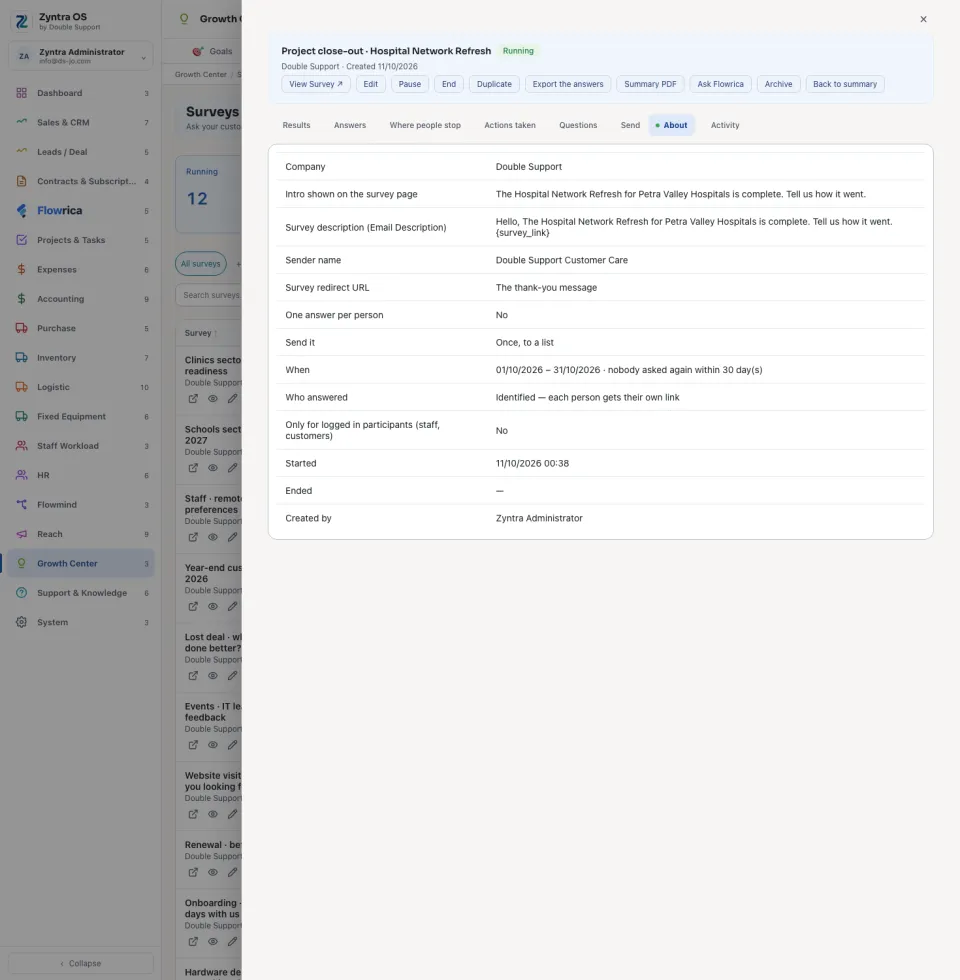
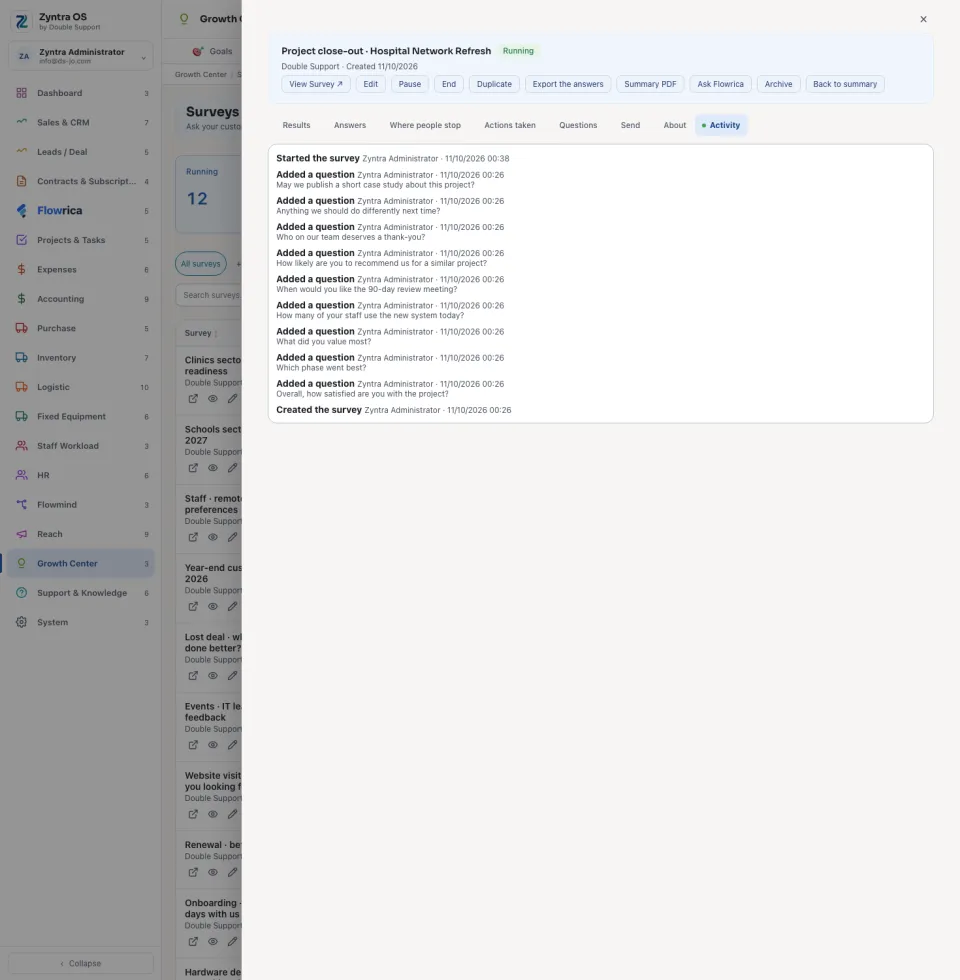
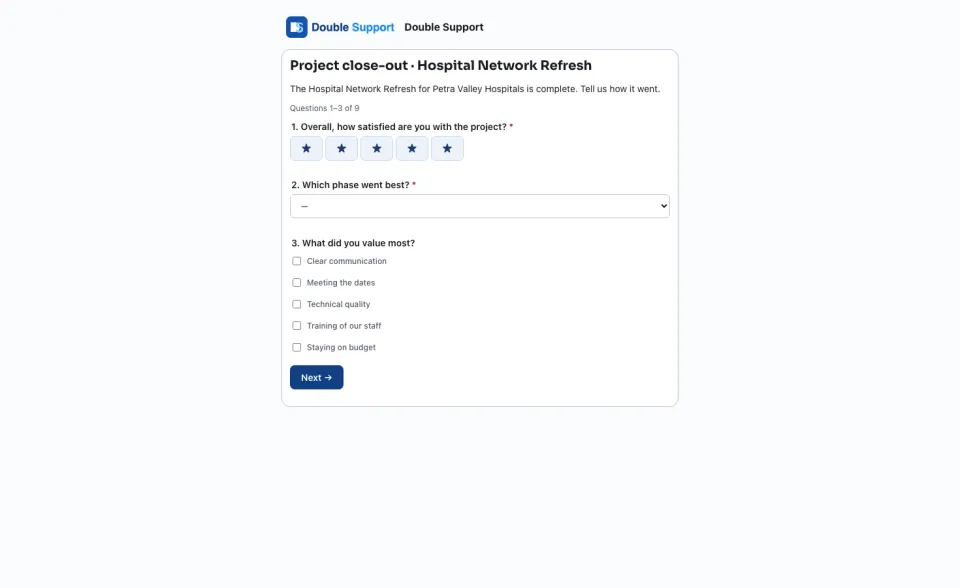
Anyone allowed to manage surveys.Press a survey's name to open it. Its buttons are View Survey, Edit, Pause, End, Duplicate, Export the answers, Summary PDF and Archive. Its tabs are Results, Answers, Where people stop, Actions taken, Questions, Send, About and Activity.
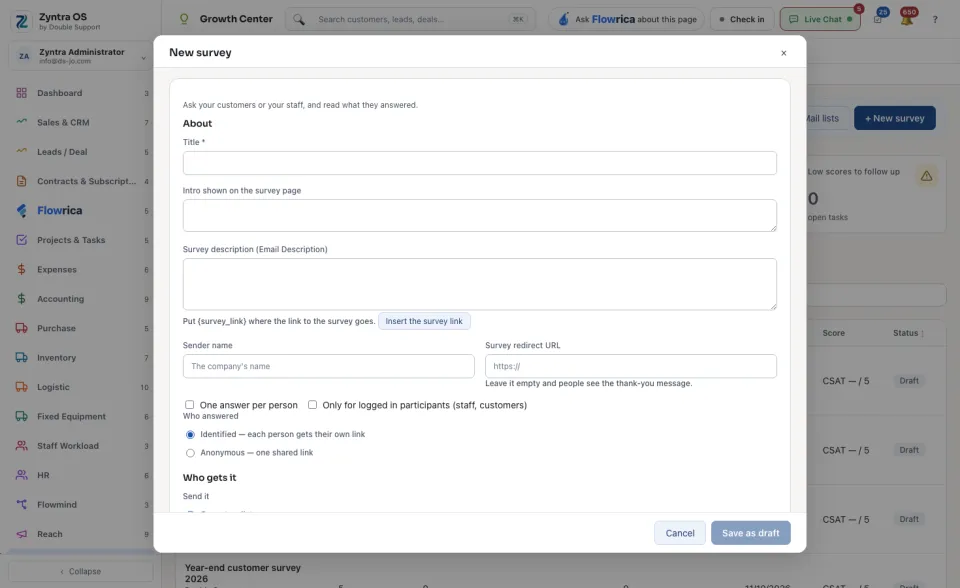
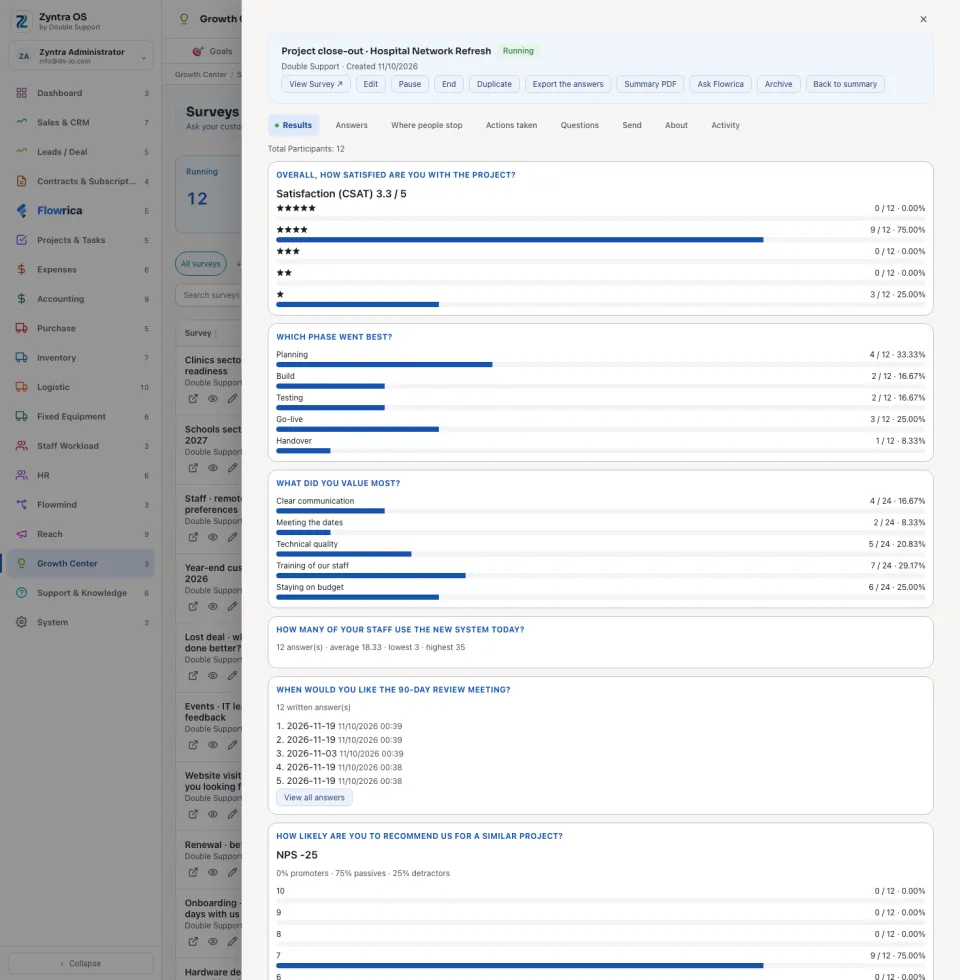
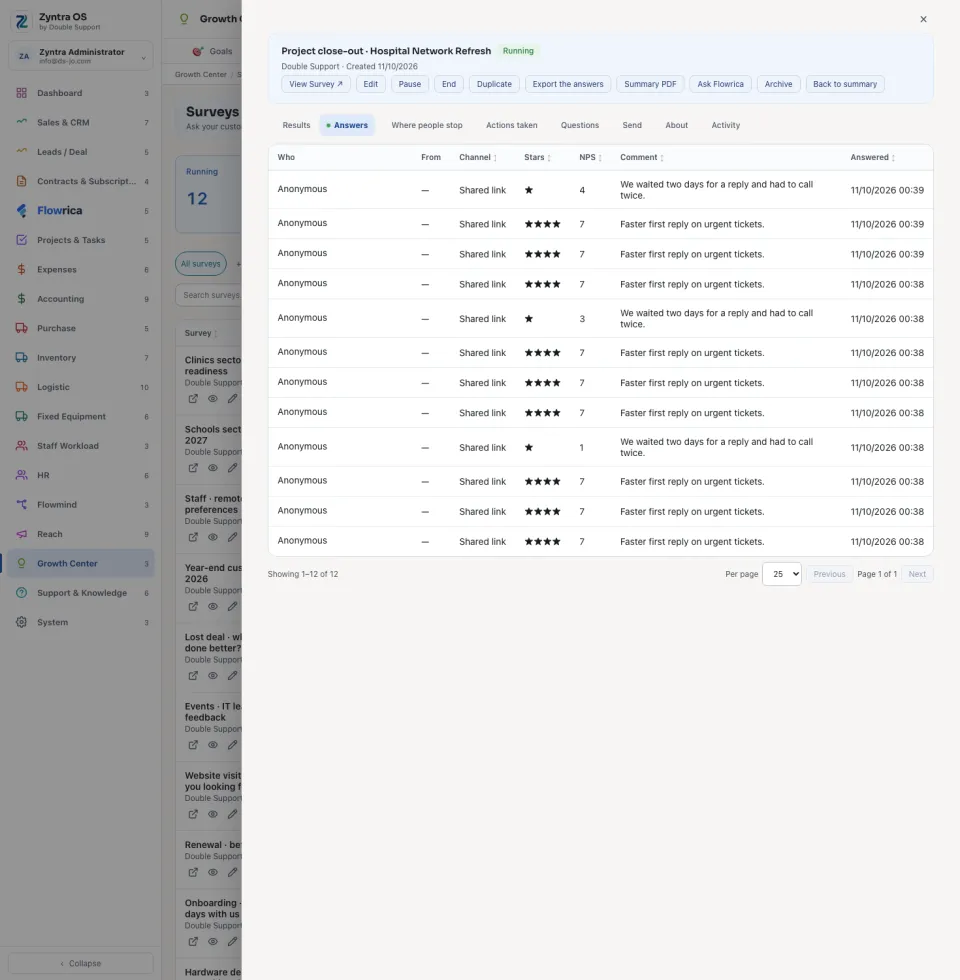
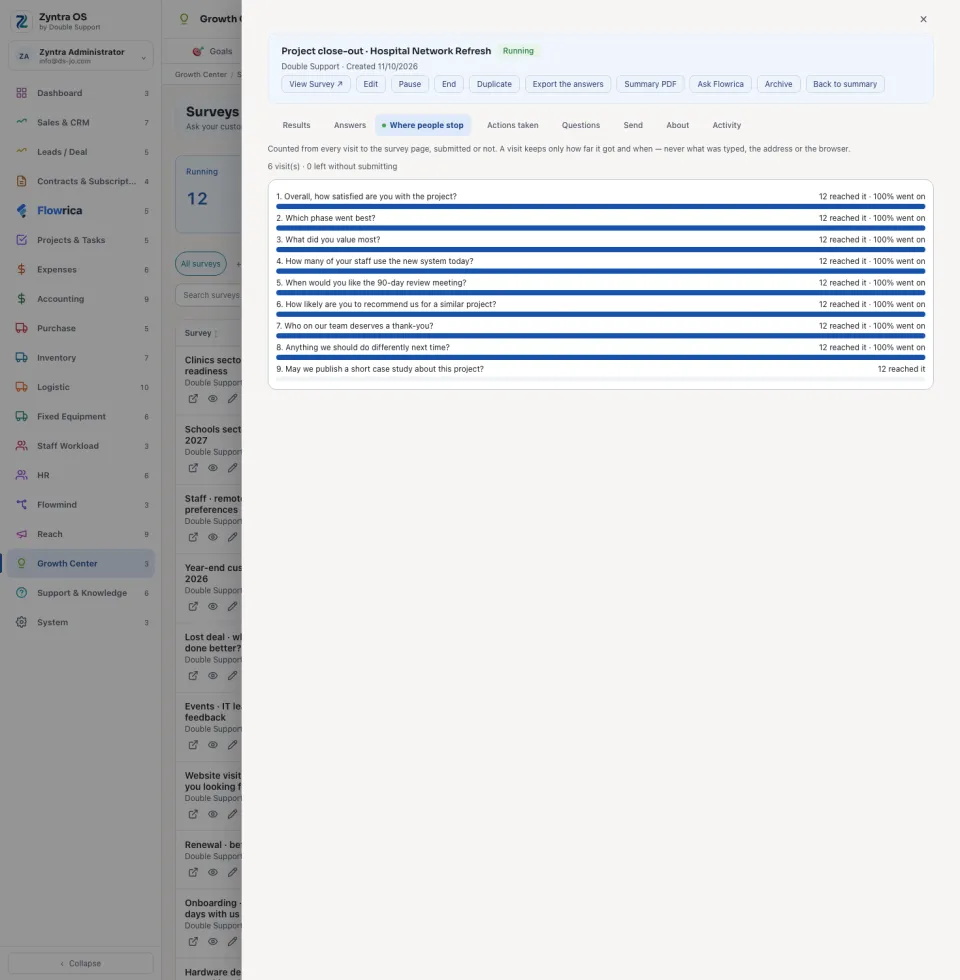
The list
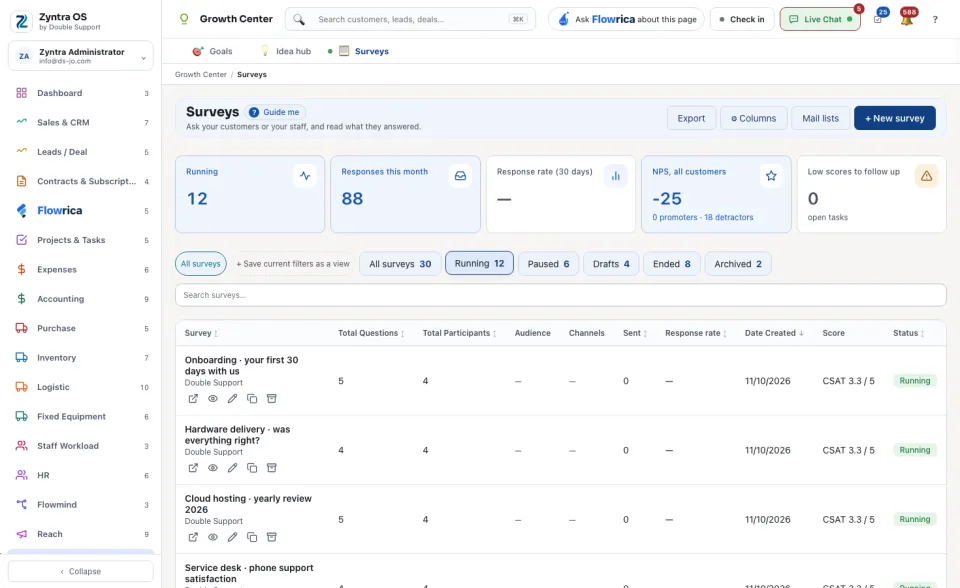
The cards count the surveys that are Running, the Responses this month, the Response rate (30 days), the NPS, all customers (with its promoters and detractors) and the Low scores to follow up. The views are All surveys, Running, Paused, Drafts, Ended and Archived. + Save current filters as a view keeps your own view. Search surveys… finds one. Export and ⚙ Columns work on the table.
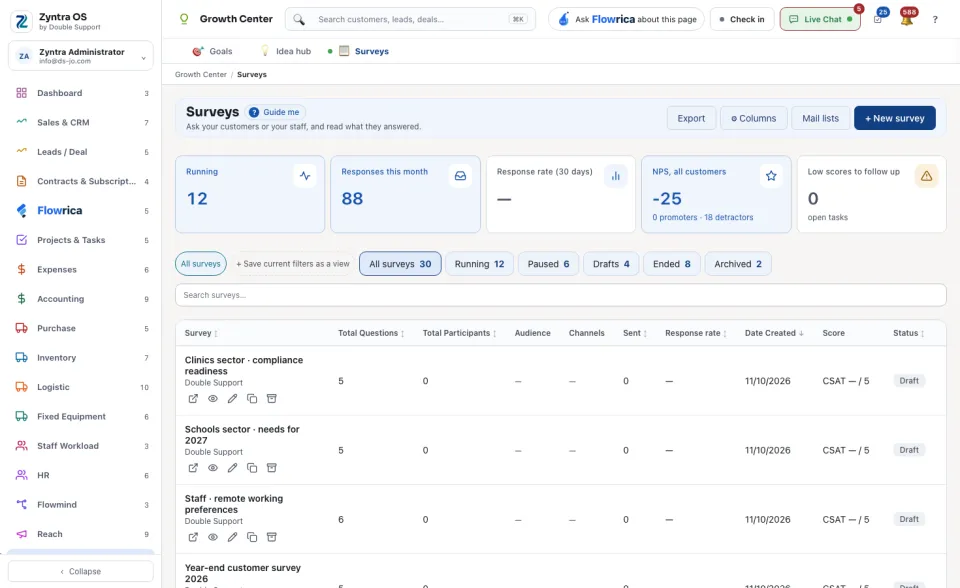
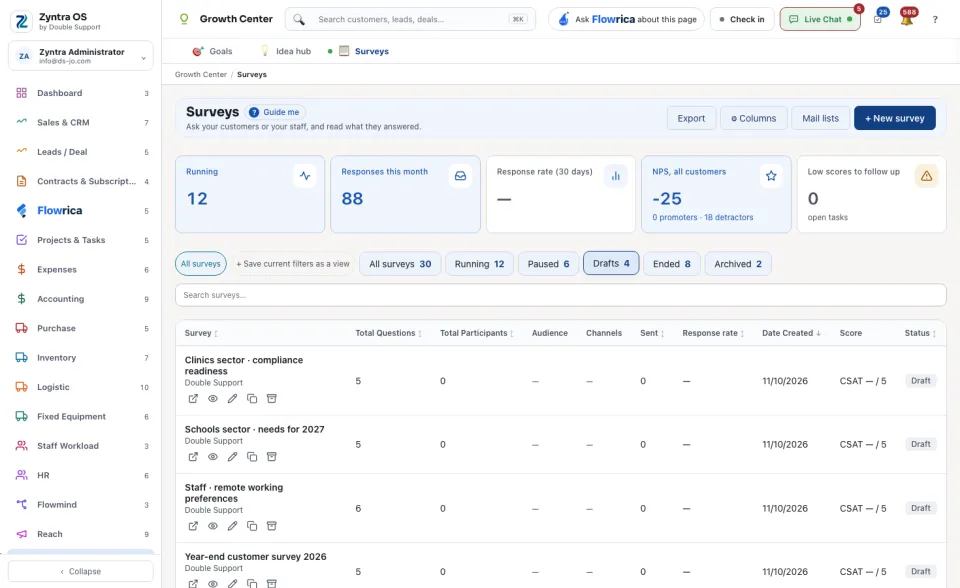
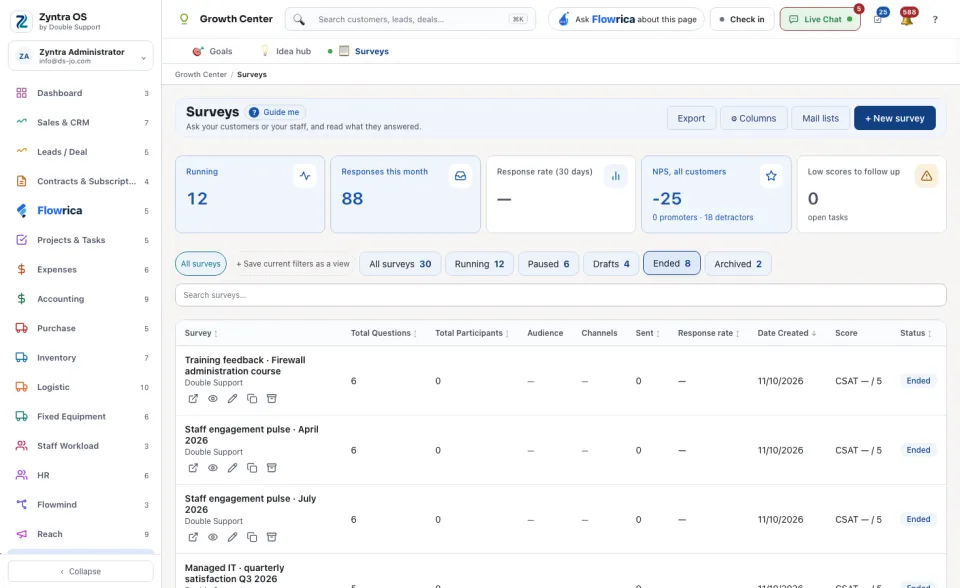
Mail lists opens your own lists of addresses to send a survey to. See Survey mail lists.
Flowrica on this screen
Press Guide me and Flowrica points at each part of the screen. She can build a survey with you, one question at a time. Nothing is saved until you press the form's own button. You can also ask her, for example, “What did unhappy customers say this month?”.