

 Zyntra OS
 Zyntra Legal
 Zyntra Real Estate
 Zyntra Hotel
 Zyntra E-commerce
 Zyntra Appointments
 Zyntra Repair
 Zyntra Garage
 Zyntra Concierge
 Zyntra Contracting
 Zyntra Clinic
 Zyntra Call Center
 Zyntra OTA
Where
Accounting › The books › Tax setupWho
People whose role may see the accounting settings. Changing anything here needs the right to edit tax setup.Nothing here applies to a company until the company chooses its jurisdiction, on the Companies tab.
To start quickly press Load the Jordan template: it adds Jordan's jurisdiction, tax types, return lines and categories in one step. Once it is loaded the button gives way to the line Jordan template loaded. Or build it by hand, tab by tab:
| Tab | What it holds |
|---|---|
| Jurisdictions | A country, or a region inside one with its own tax rules. |
| Tax types | Each tax a jurisdiction charges, with how long its return period is. |
| Return lines | The lines of the official return, named once and used everywhere. |
| Categories & rates | How a tax is treated: whether its input tax can be claimed, whether it is in scope. Each category lists its rates; Move to another category moves a rate. |
| Transaction types | Export, free zone, transit, local: a type can put every line of an invoice into one category and return line. |
| Customer tax identities | Kinds of customer the law taxes by a category, such as a zero-rated entity. |
| Priority order | When more than one rule could set a line's tax, the level higher on the list wins. Use Move up and Move down, then Save this order. |
| Companies | The jurisdiction each company files in, and the tax types it is registered for. |
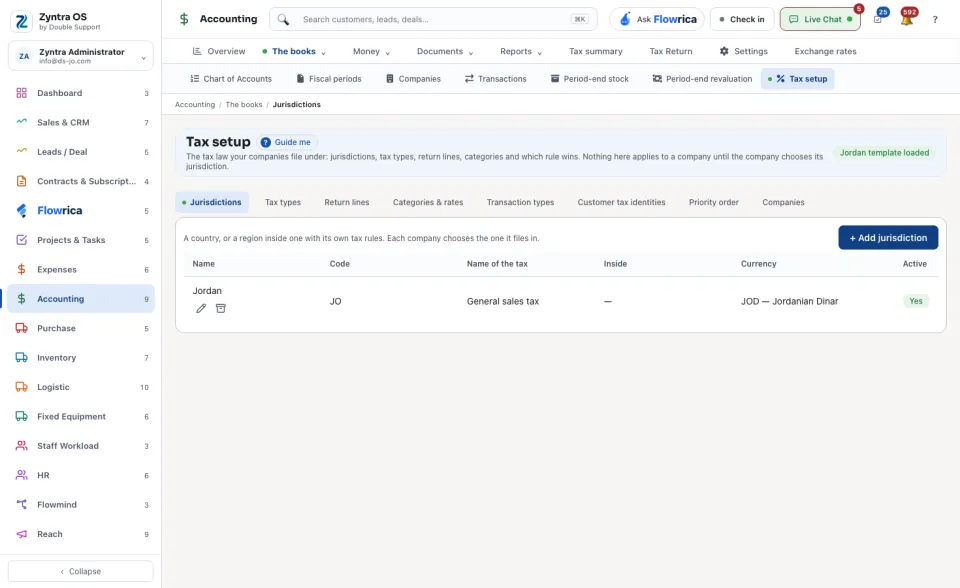
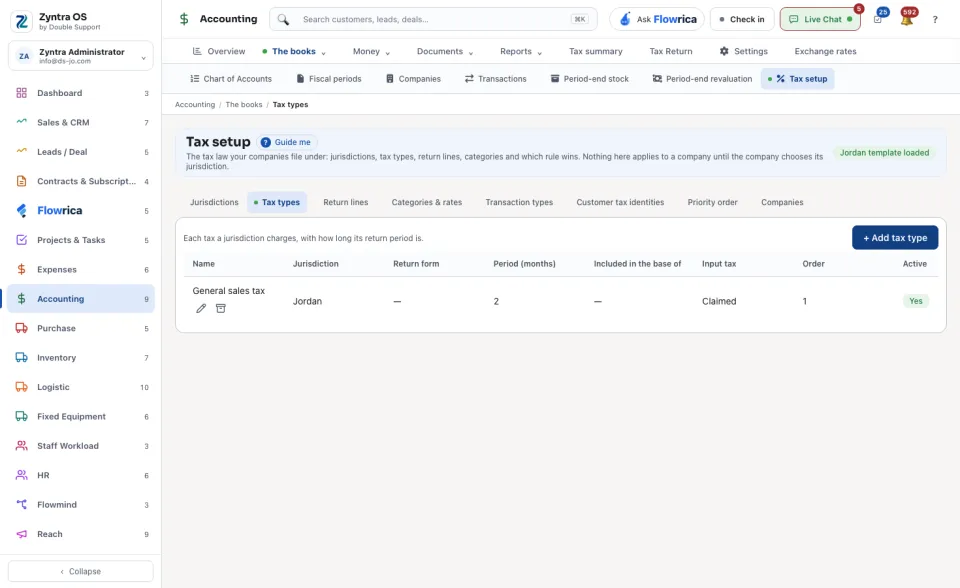
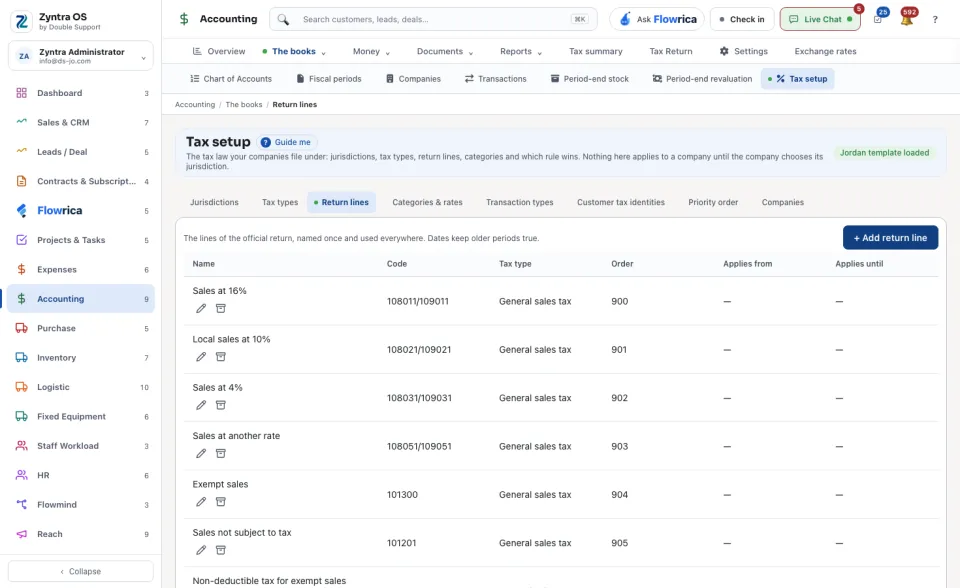
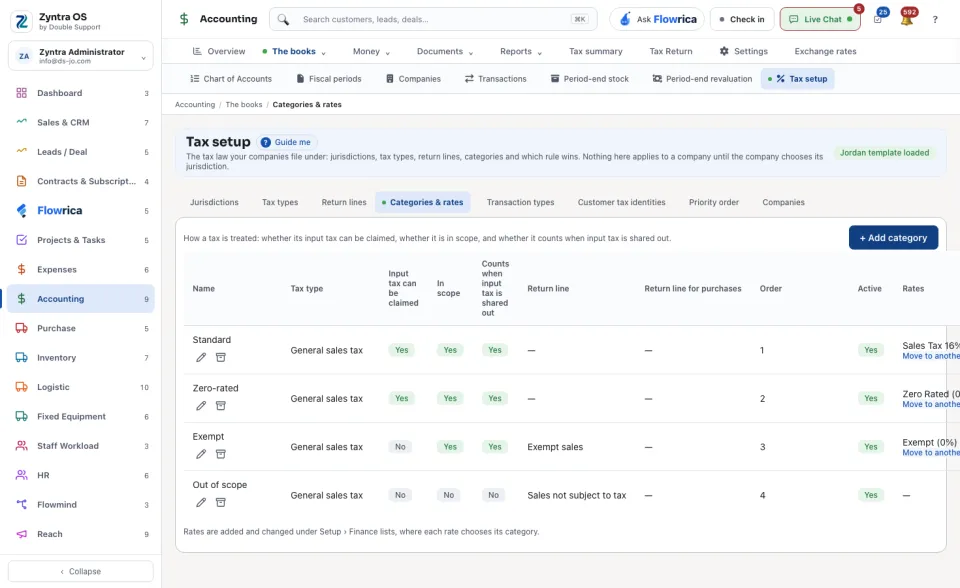
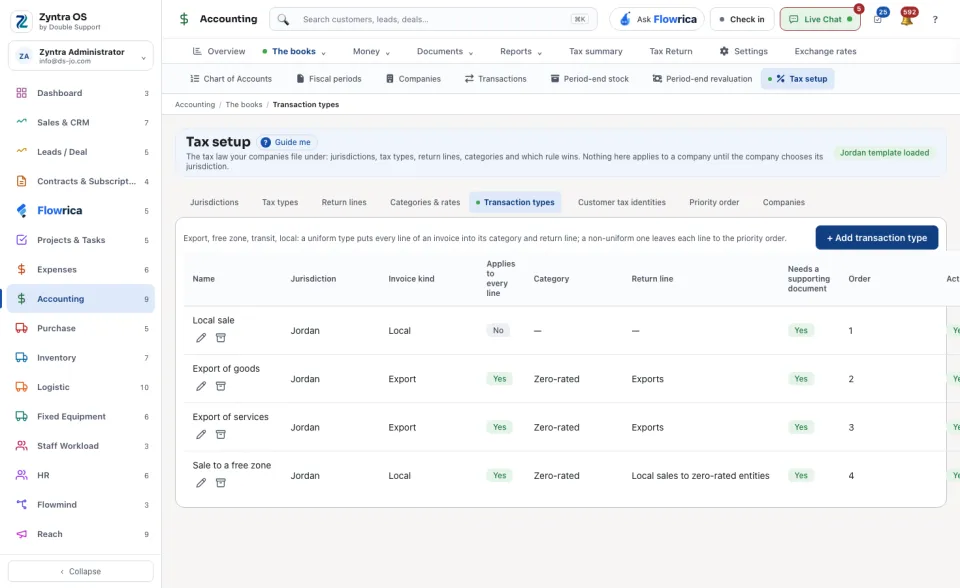
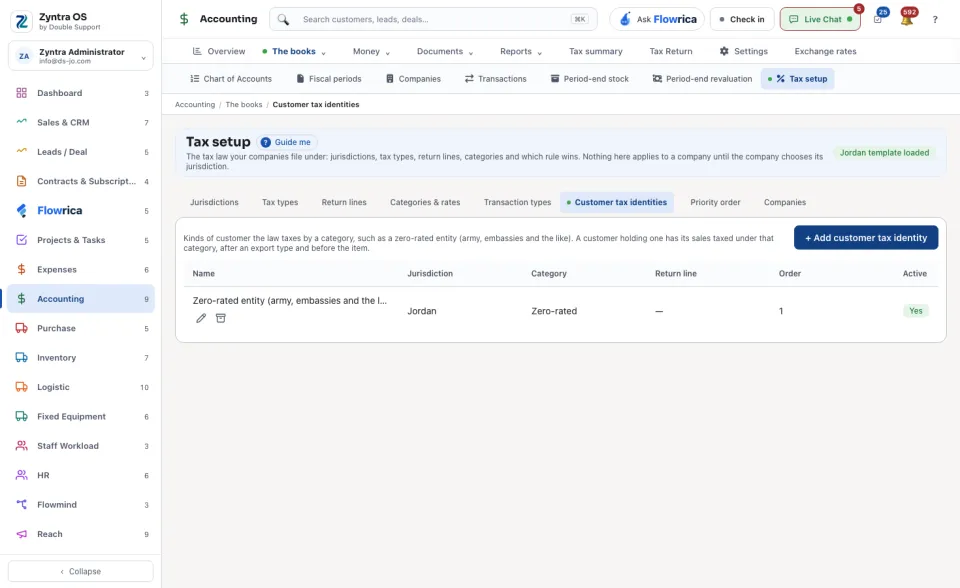
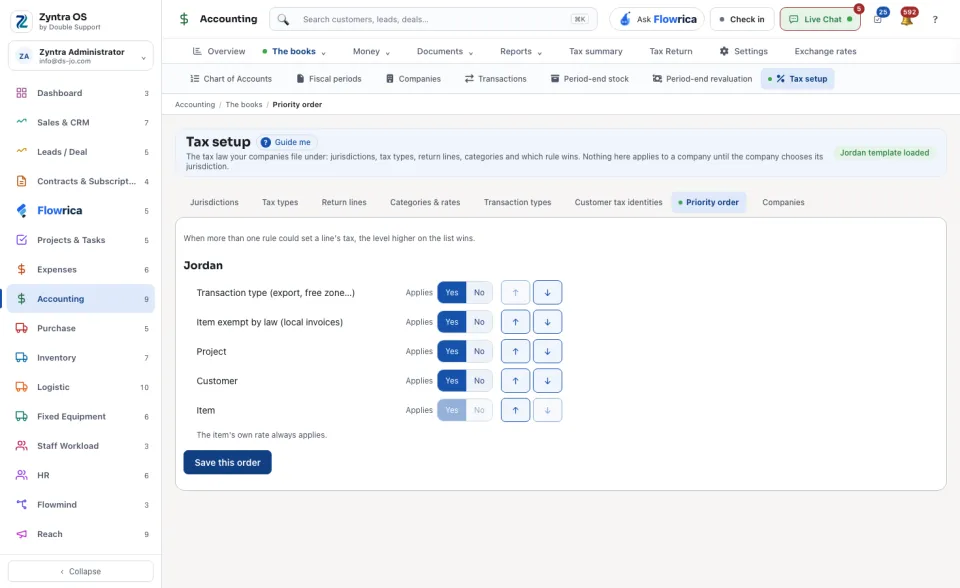
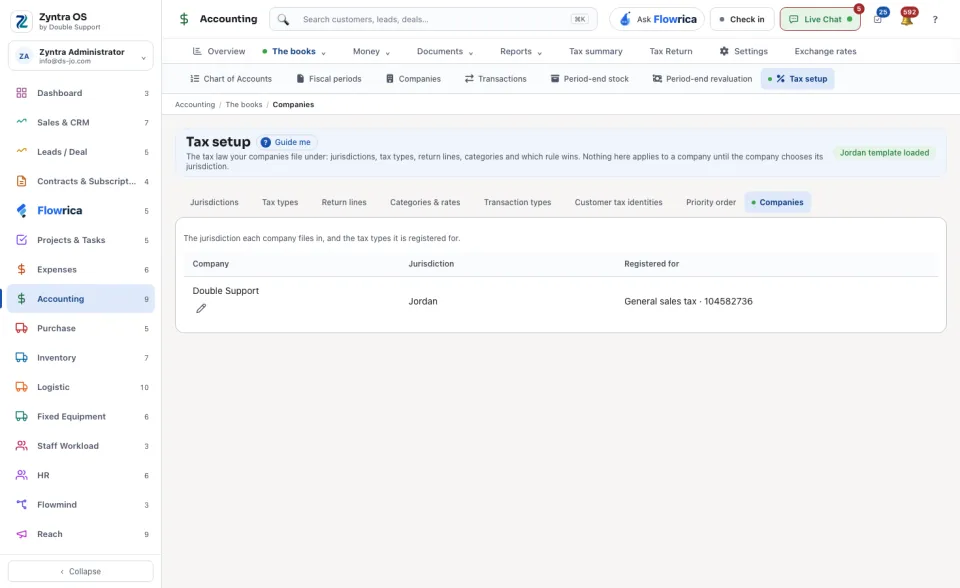
Each list has its own add button, such as Add jurisdiction, Add tax type, Add return line, Add category, Add transaction type or Add customer tax identity. Archive puts a row away, once nothing still uses it; Restore brings it back.
The rates themselves are added and changed under Setup › Finance lists, where each rate chooses its category.