Zyntra OS
 Zyntra Legal
 Zyntra Real Estate
 Zyntra Hotel
 Zyntra E-commerce
 Zyntra Appointments
 Zyntra Repair
 Zyntra Garage
 Zyntra Concierge
 Zyntra Contracting
 Zyntra Clinic
 Zyntra Call Center
 Zyntra OTA
Where
Inventory › SettingsWho
Anyone allowed to see this screen; changes need the right to edit it.The screen is a row of tabs. Press a tab to open its part.
| Tab | What it holds |
|---|---|
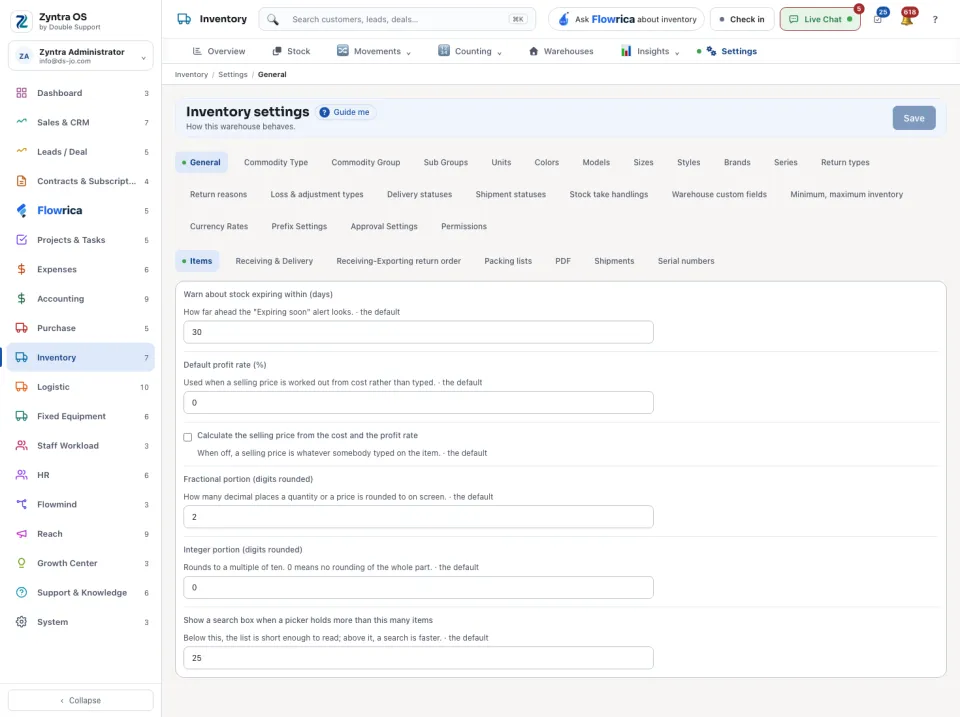
| General | The options, in seven groups: Items, Receiving & Delivery, Receiving-Exporting return order, Packing lists, PDF, Shipments and Serial numbers. Each option says under it what it does. Change what you need, then press Save. |
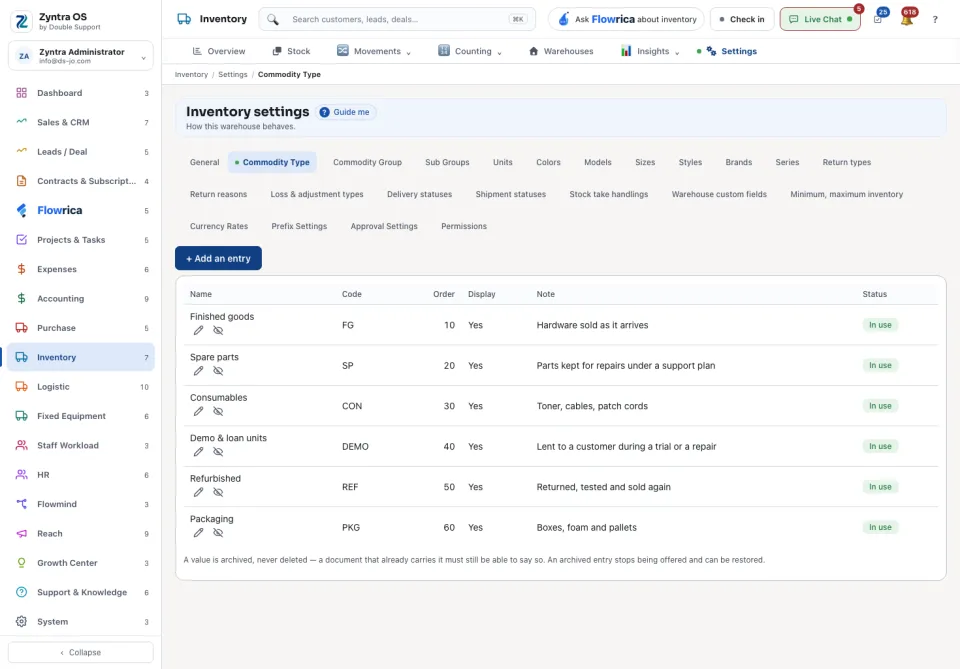
| The lists, from Commodity Type to Stock take handlings | The choices the forms offer: groups, Units, Colors, Brands, Return reasons, Loss & adjustment types, Delivery statuses and the rest. Press + Add an entry, type its Name and press Save. On a row: Edit and Archive. A value is archived, never deleted: it stops being offered and can be brought back. |
| Warehouse custom fields | Shows the extra fields added to warehouses. They are added in the system's setup, not here. |
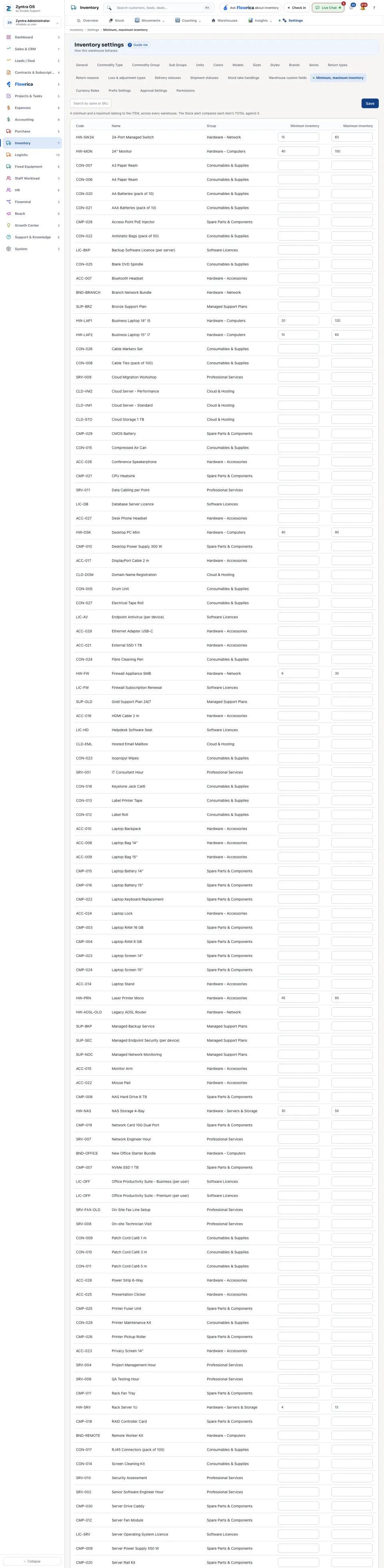
| Minimum, maximum inventory | Each item's Minimum inventory and Maximum inventory. The limits belong to the item across every warehouse; the stock alert compares the item's total with them. Type the numbers and press Save. |
| Currency Rates | A view of the rates the whole system holds. Open the rate store goes to where they are kept. Below it, the oldest rate a new document may use, in days. |
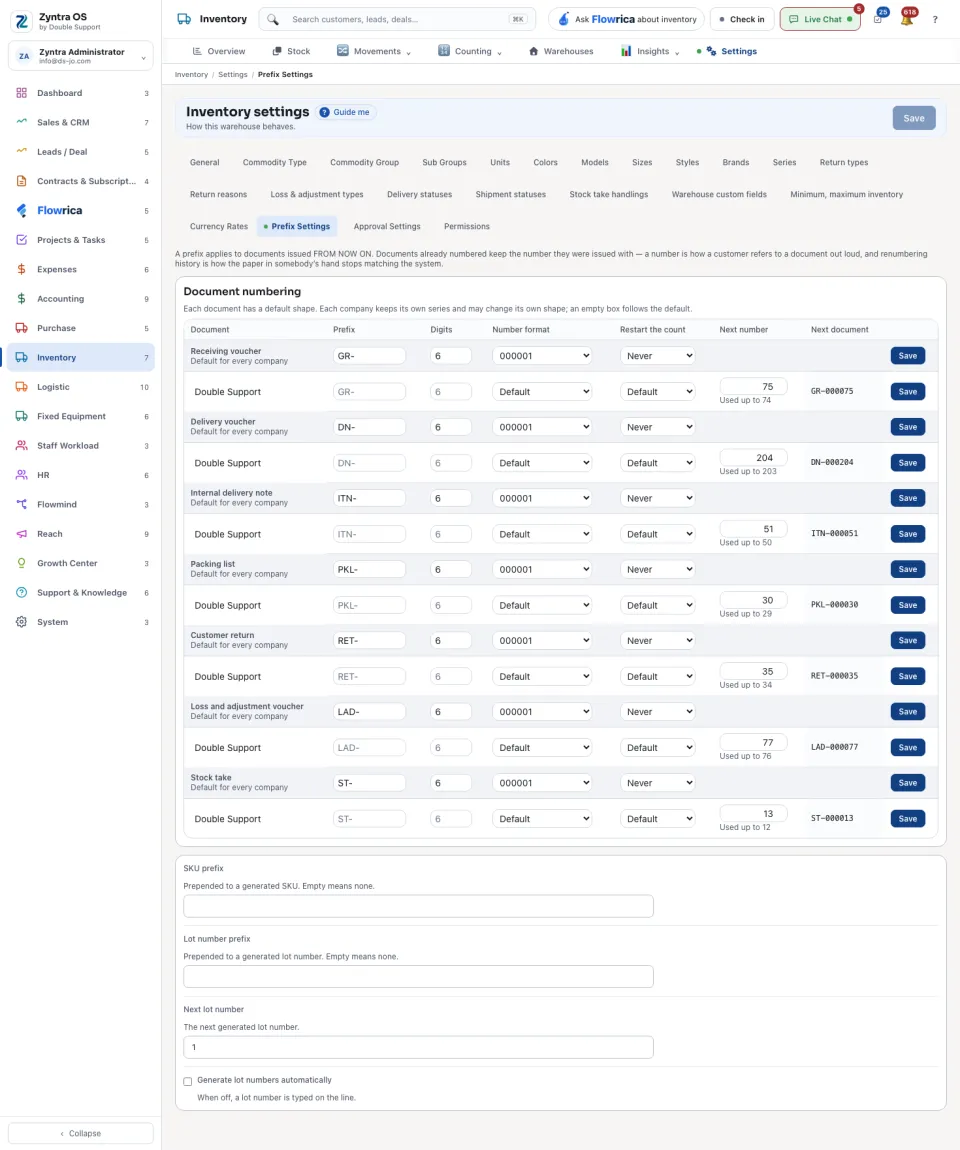
| Prefix Settings | How each inventory document is numbered: its Prefix, Digits, Number format and when to Restart the count. Each company keeps its own series. A new prefix applies to documents from now on; a document already numbered keeps its number. |
| Approval Settings | The approval chains: one per document type. |
| Permissions | Shows what each role may do in Inventory. It changes nothing: press Open Roles & permissions to change it. |
Add an approval chain
1
Open Approval Settings and press + New approval chain.
2
Type its Name and choose the Document it approves.
3
For each step choose Who signs: a person, anyone holding a role, or whoever approves for the person who raised the document. Press + Add a step for another signer.
4
Press Save.
A document type with no chain is approved when it is saved. On the list, Edit changes a chain and Switch on starts it. Changing the steps saves a new version: documents already waiting keep the steps they started with. A document waiting on a step nobody can sign is listed under the chains with Re-route to the current steps.