

 Zyntra OS
 Zyntra Legal
 Zyntra Real Estate
 Zyntra Hotel
 Zyntra E-commerce
 Zyntra Appointments
 Zyntra Repair
 Zyntra Garage
 Zyntra Concierge
 Zyntra Contracting
 Zyntra Clinic
 Zyntra Call Center
 Zyntra OTA
Where
Accounting › Reports › BudgetWho
People whose role may see budgets.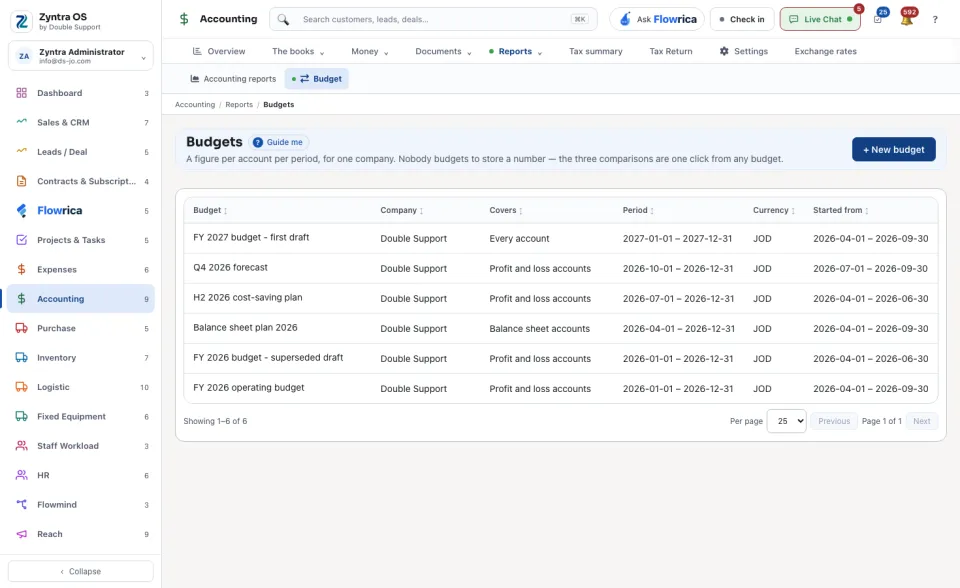
1
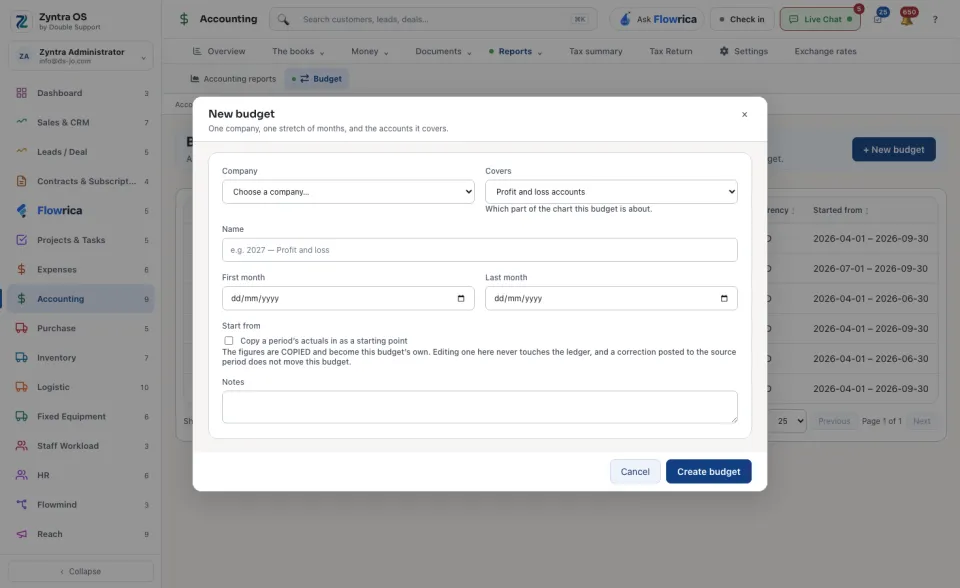
Press + New budget. Choose the Company and what the budget Covers (which part of the chart), and give it a Name. Notes are optional.
2
Choose the First month and the Last month.
3
Under Start from you may tick Copy a period’s actuals in as a starting point and say the months to copy. The figures are copied and become the budget’s own: changing one never touches the ledger.
4
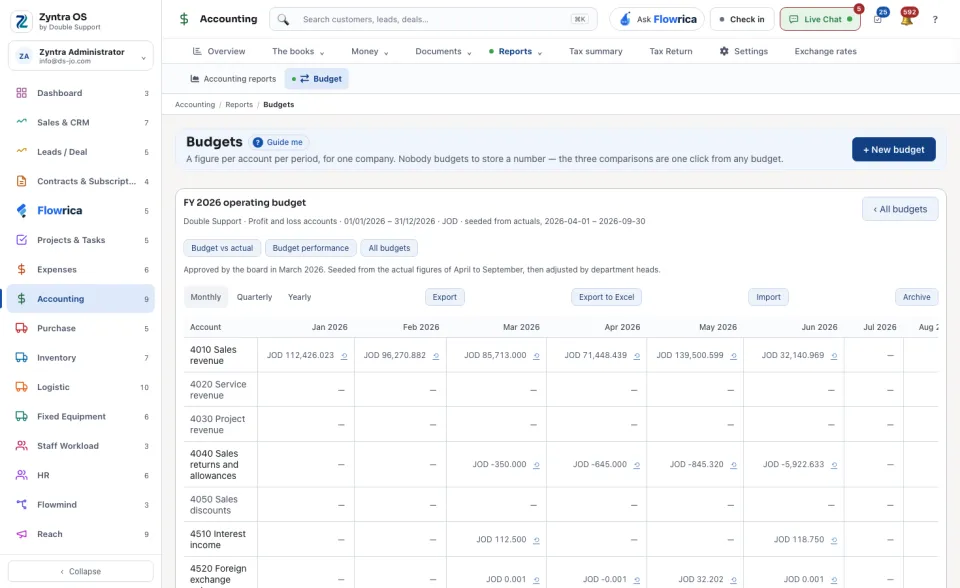
Press Create budget. The budget opens as a grid: one row per Account, one column per month, and a Total.
5
Type the figures in the Monthly view. Quarterly and Yearly show the months added up. Each figure keeps its history: every value it has held and who changed it.
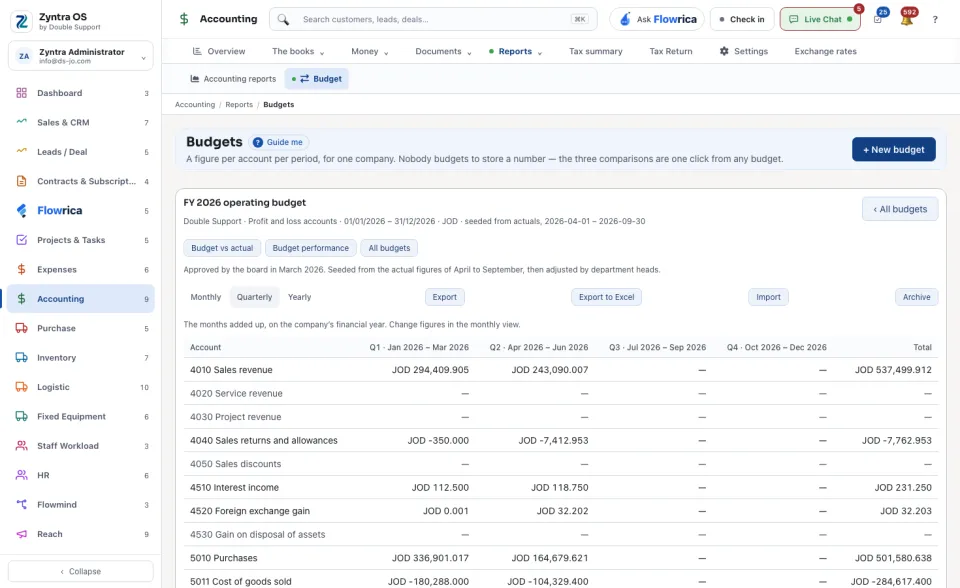
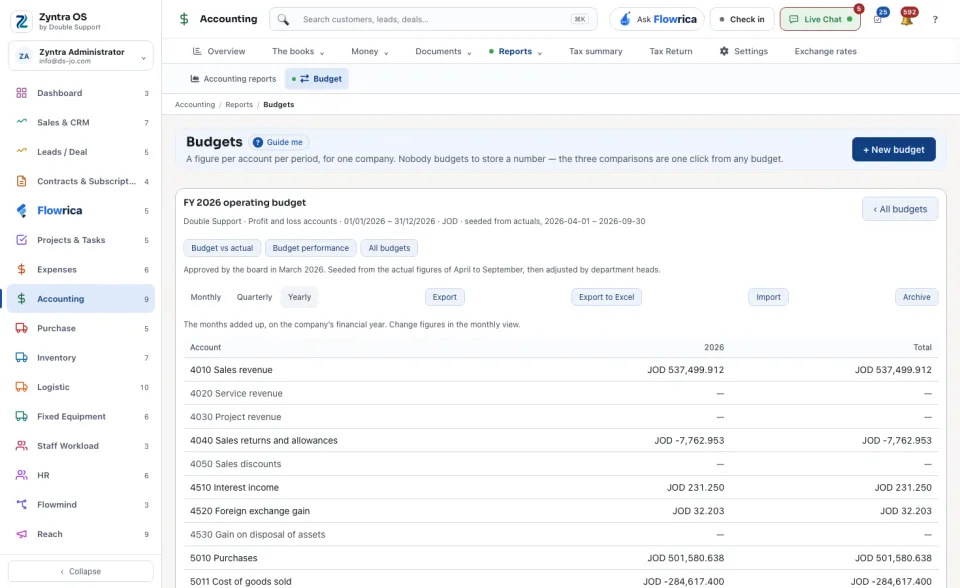
On an open budget: Export and Export to Excel download it. Import brings figures back from a file: use the monthly export as the sample, press Preview, then apply; nothing changes before that. Archive puts the budget away with its figures kept, and Restore brings it back.
The links Budget vs actual, Budget performance and All budgets open the three comparison reports. The list of budgets shows Budget, Company, Covers, Period, Currency and Started from.
With Flowrica: press Guide me and she points at + New budget. The press is yours.